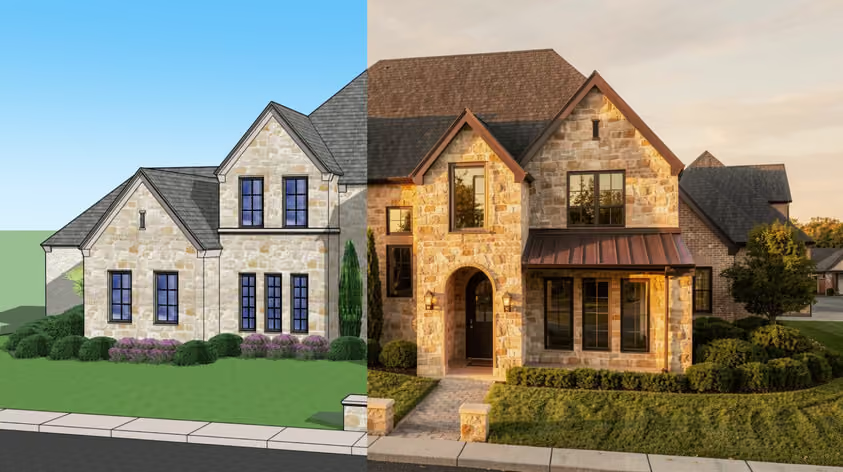
SketchUp Diffusion (now rebranded AI Render) puts AI rendering right inside SketchUp: point it at a 3D model and you get a rendered image in seconds. The catch is a credit-limited system and material accuracy that's hit or miss.
This review covers what it does well, where it falls apart, and whether it's worth your subscription in 2026.
SketchUp Diffusion (or AI Render) represents Trimble's ambitious entry into AI-powered architectural visualization. But beneath the marketing promises of "instant photorealistic renders," professionals are reporting a tool that's more of an experimental prototype than a production-ready solution. After extensive testing and analysis of user feedback from the SketchUp community, we discovered many interesting things about this controversial feature.
SketchUp Diffusion brings easy-to-use generative AI into SketchUp to quickly generate concept visuals. It aims to inspire your creative process and support your design narrative at any stage of your project. Released in December 2023 as part of SketchUp Labs (their public beta program), it integrates directly into Desktop, Web, and iPad versions.
%252520(1).jpeg)
The technology behind it combines Stable Diffusion algorithms with ControlNet. To understand how that works, you need to know how it's implemented.
SketchUp captures your viewport as a 2D image, sends it to Trimble's servers along with your text prompt, and returns AI-generated variations. This isn't accurate 3D-aware rendering, though; it's image-to-image transformation with all the limitations that implies.
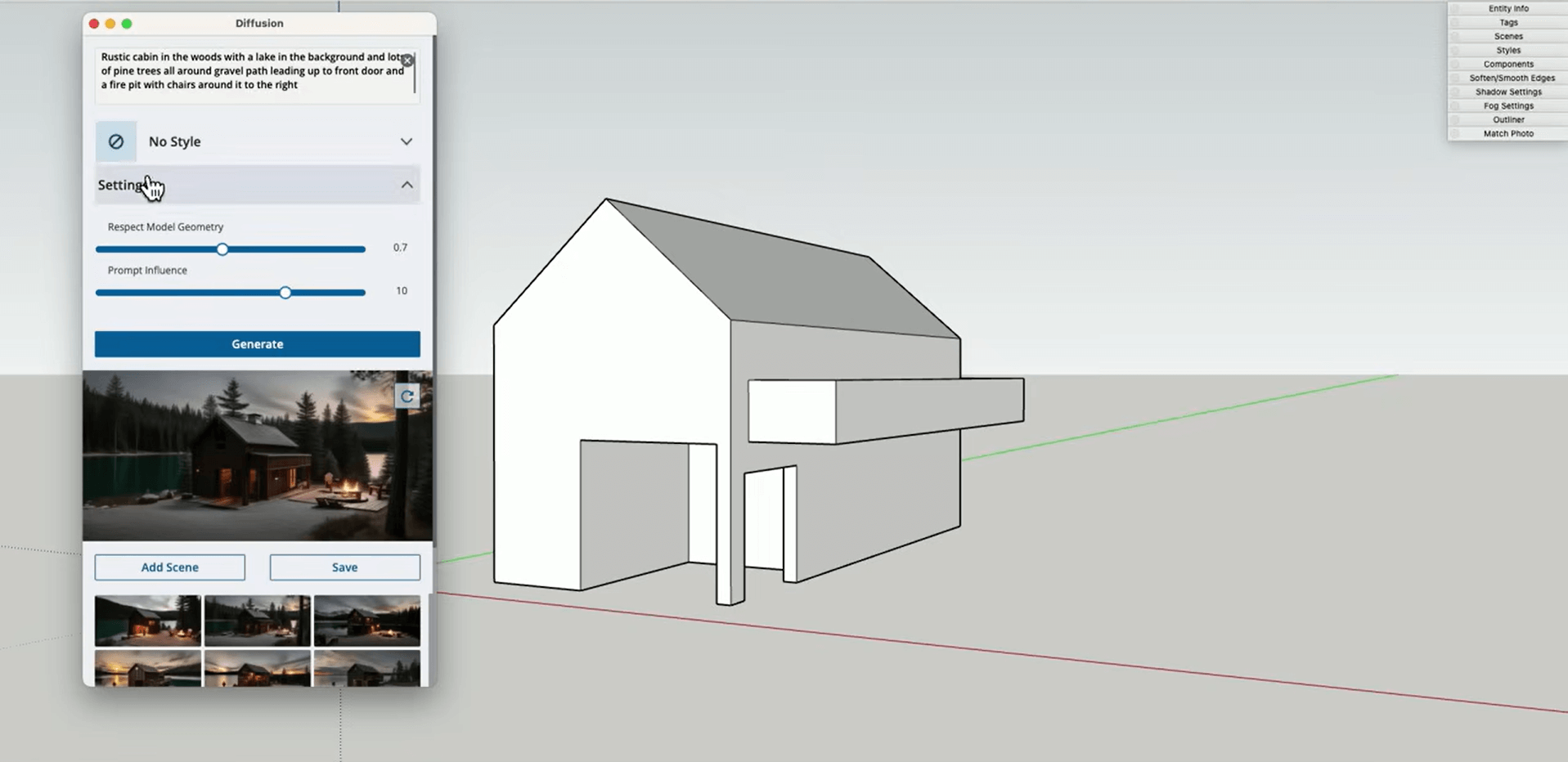
When you click Generate, here's what happens behind the scenes:
This cloud-based approach means zero hardware requirements, but also means you're entirely dependent on Trimble's infrastructure and credit allocation.
Getting Diffusion running involves more than just clicking install:
Windows Desktop: Generally stable, but users report memory leaks after extended use. The extension can consume 500MB+ RAM after multiple generations.
Mac Desktop: AI Render can also be added to your toolbar using the Customize Toolbar option. M1/M2/M3 Macs show better performance with faster viewport capture before upload to Trimble’s cloud, so interactions feel snappier (even though the heavy lifting remains server-side).
iPad Version: Built-in but limited. The markup integration works well with Apple Pencil, but the interface feels cramped on anything smaller than a 12.9" Pro.
Web Version: Most stable implementation, ironically. No installation headaches, but limited to 2K viewport resolution.
The credit system is where SketchUp Diffusion's limitations become painfully clear. Each SketchUp subscription tier includes a set number of credits you can use each month:
Generating output with AI Render costs 10 credits whether you get usable results or not. Failed generations, experiments, mistakes - all cost the same.
What does that mean in practice? A single busy client meeting can exhaust your monthly allocation.
Let's break down what twenty renders per month actually conveys for a working architect. Suppose your average needs count for:
With SketchUp Studio's 20 included monthly renders, without the paid add-on, you'd need 1.5-6 months to complete one project's visualization needs. The paid SketchUp AI add-on adds 1,500 credits (150 renders) per month, which brings Studio to 170 renders per month and covers a 30-120 render project within a month, at an extra monthly cost.
The Settings sliders let you decide how closely Diffusion will adhere (or not!) to what you've drawn in SketchUp and the extent to which the text prompts influence the output. Sounds simple, but the reality is far more complex:
This slider supposedly controls how closely the AI follows your actual model:

By playing with the 'Respect Model Geometry' and 'Prompt Influence' sliders, you can get some very interesting results - "interesting" being code for "unpredictable and professionally unusable."
Controls how much weight your text description carries:

The fundamental problem: these sliders interact unpredictably. Settings that work for one model fail completely on another. Users report spending entire credit allocations just finding workable slider combinations.
We did our own testing to practically illustrate the SketchUp Diffussion issues frequently complained about. More on that in a few minutes.
Effective prompting in SketchUp Diffusion requires understanding both what works and what the AI consistently misinterprets.
The most effective prompts in SketchUp Diffusion have a clear hierarchical structure:
For Modern Residential: "Contemporary single-family residence, flat roof architecture, floor-to-ceiling glass walls, warm cedar siding, white stucco, xeriscaped front yard with decomposed granite, golden hour lighting, architectural digest photography, photorealistic, 8K"
For Commercial Interiors: "Corporate reception area, biophilic design, living green wall, terrazzo flooring with brass inlays, walnut acoustic panels, sculptural pendant lighting, morning light, professional interior photography, hyperrealistic details"
For Urban Planning: "Mixed-use development, street-level retail with residential above, activated streetscape, pedestrians and cyclists, street trees and planters, overcast sky, urban planning visualization, detailed facades"
Through community testing, these elements consistently cause failures:
SketchUp includes eight preset styles, each with hidden prompt engineering:

The "Auto Prompt" feature generates a prompt by looking at the SketchUp model viewport and creating a detailed description. However, users report that it frequently misidentifies basic elements, so stairs become ramps, and windows become solid walls.
The most consistent complaint involves material assignment. The simple distinction between a driveway and grass is seemingly impossible to rely on or achieve with any success. Here are a few user examples from forums:
Even with maximum geometry respect, the users document:
This is the most typical AI problem: always different results. You cannot:
Beyond design issues, users report:
Some users find value in specific use cases:
Forum analysis reveals overwhelming frustration.
The AI-generated image that SketchUp Diffusion produced validates the fact that even though the tool has a user-friendly interface, the AI images it produces are not high-quality.
The lack of control and accuracy makes rendering extensions like V-Ray for SketchUp still the preferred choice for precise renders.
Performance degradation concerns are growing. Multiple users confirm output quality has declined since launch. The same scene, rendered with SketchUp Diffusion about a year ago, seems far superior to the same scene with the latest version. Why is the result so different? No answer so far.
Here’s what architecture firms testing Diffusion reported:
Here’s what you can do to get at least something out of SketchUp Diffusion's many limitations.
Never waste credits on full-resolution tests:
Diffusion performs marginally better with:
Recent updates added the "Maintain Seed" option. After selecting a Diffusion-generated image, toggling Maintain Seed allows you to iterate on the chosen image instead of creating an entirely new image. This helps achieve some consistency, though changes remain unpredictable.

The new negative prompt field helps exclude unwanted elements:

However, negative prompts consume valuable character limits and don't always work.
Now, does all this imply that AI rendering in general is a waste of time? No, not even close. To make it clear, we will now compare SketchUp AI render to other AI rendering tools tailored to perform the tasks, such as MyArchitectAI.
Let's first move beyond marketing claims to actual capabilities:
| Feature | SketchUp Diffusion | MyArchitectAI |
|---|---|---|
| Monthly Render Limit | 10-20 renders (150 more with the paid add-on) | Unlimited |
| Cost per Render | 10 credits out of 100-200 included in the subscription | Fraction of a penny |
| Processing Time | 30-45 seconds | 10-30 seconds |
| Material Accuracy | Random interpretation | Preserves design intent |
| Geometric Precision | Significant distortion | Maintains model geometry |
| View Consistency | Impossible to achieve | Consistent across angles |
| Resolution Output | Limited by the viewport | High-resolution options |
| Learning Curve | Deceptively complex | True one-click operation |
| Professional Viability | Experimental only | Production-ready |
| Hardware Requirements | None (cloud-based) | None (browser-based) |
| Platform Support | Desktop/Web/iPad | Any device with a browser |
| Batch Processing | Not available | Efficient workflows |
| API Access | None | Available for integration |
Architectural Intelligence vs Generic AI: While SketchUp uses general-purpose Stable Diffusion, MyArchitectAI employs architecture-specific training. That’s precisely what we mean by “tailored to perform the tasks” – it understands building materials and spatial relationships, even construction logic.
Unlimited Iteration Freedom: Professional design requires exploration. With MyArchitectAI's unlimited rendering, you iterate until perfect. SketchUp's 10-20 included monthly renders cover only a fraction of a typical project.
Consistency Across Deliverables: Generate 20 views of your project - they'll all match in style, lighting, and materials. Essential for professional presentations, impossible with Diffusion.
Browser-Based Architecture: No installation, no compatibility issues, no version conflicts. Works identically on Mac, PC, Linux, even tablets. SketchUp's multi-platform approach creates inconsistencies.
We used several ready Warehouse models to render with both tools, and let the visual difference speak louder than words.
Here we have a simple contemporary kitchen. The original model indicates a neutral color scheme in a combination of natural wood and off-white surfaces.

None of the three SketchUp Diffusion options delivered on that. The results varied from a dark brown industrial scheme to the cream-turquoise combo you can see in the following image:
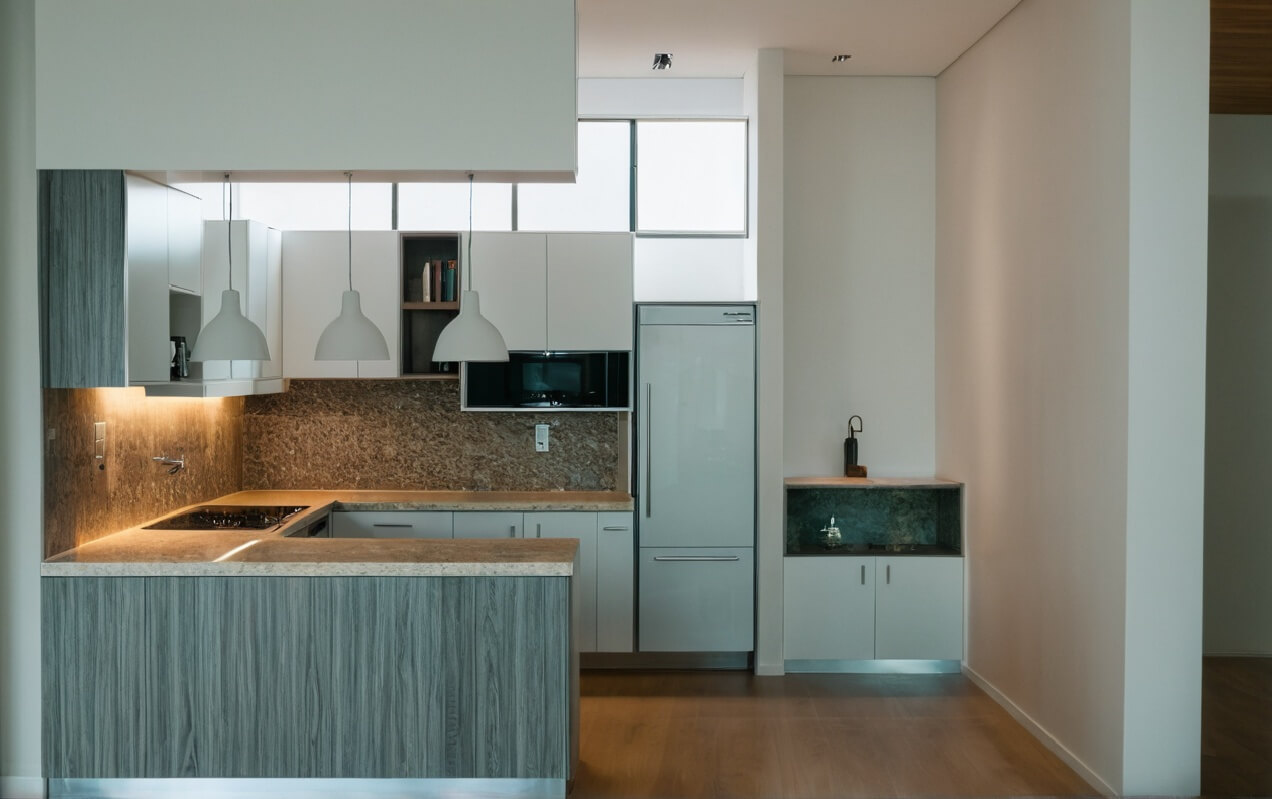
Looking closely, on the left backsplash you will notice a strange, distorted shape that should probably represent a faucet. However, it’s hard to be sure, considering it stands above the stove, so it might as well be a pot-filler.
And that is not the only quirky moment. But beyond the details, the biggest issue here was that the SketchUp AI render replaced some of the top cabinets with non-existent windows.
We then uploaded the same model to MyArchitectAI and selected the “preserve existing textures” mode. It pulled the look from the image above for the most accurate side-by-side comparison. This was the result:
.jpg)
As you can see, the cabinets, faucet, and sink are much better defined. No distorted forms in places of spotlights, either. And as for photorealism and material integrity—you can judge for yourself. But this was still an interpretation of the other image combined with the direct SketchUp model reading.
Everything is exactly in its place, and the materials and color palette are true to the design.

We tried it next with a slightly more complex and detailed model of a living room with a built-in library-media wall. Somewhat expectedly now, SketchUp Diffusion delivered liberally interpreted results, which involved the window instead of a TV:

The other option got some surfaces right, and the TV is also there. The same cannot be said about the color palette and a few furniture elements:
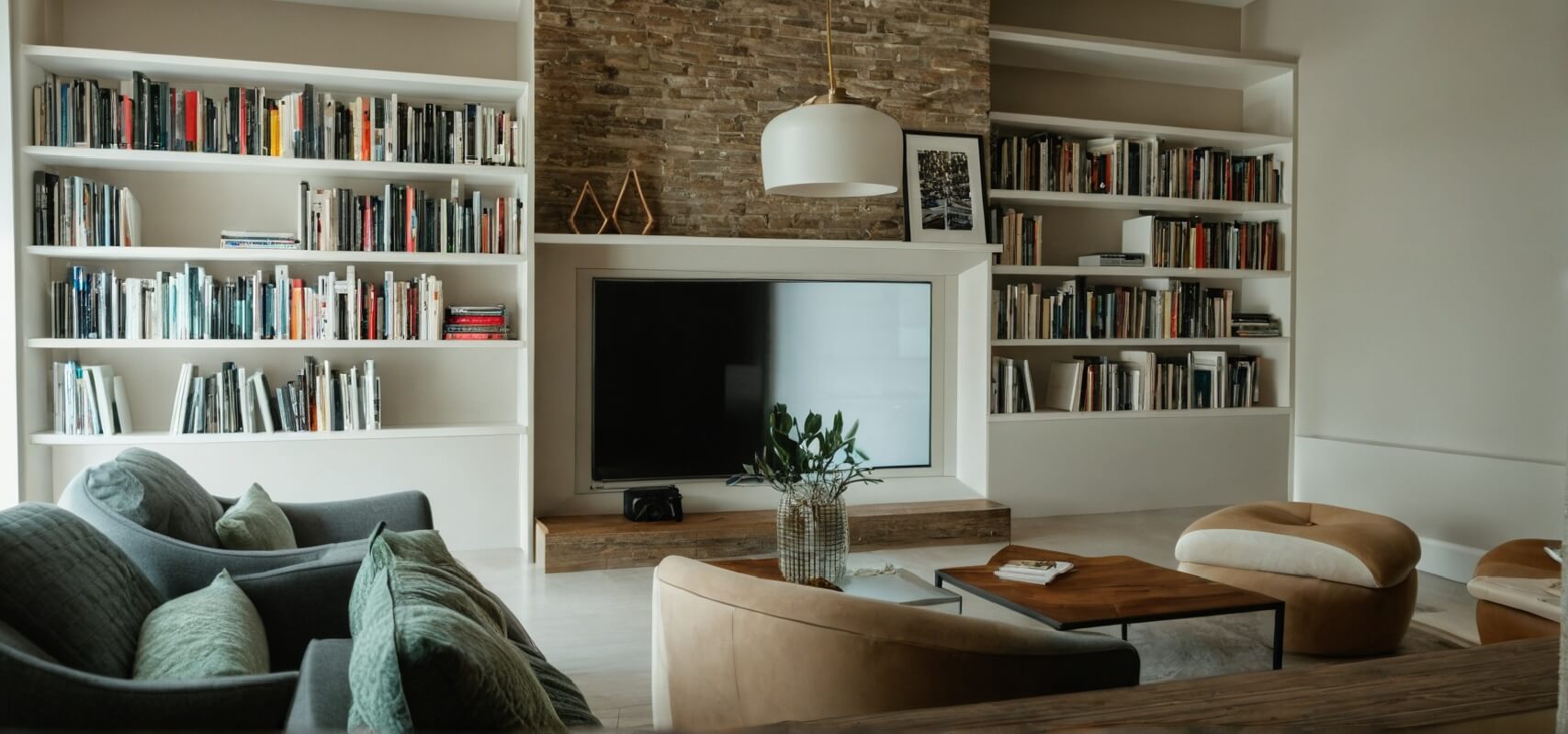
Below's the MyArchitectAI version. You can clearly see how the colors and textures are better preserved, there's no extra objects being added, and we even got a realistic reflection of the flowers in the TV screen.
.jpg)
And finally, we tried with the bathroom. Here's the SketchUp Warehouse exported view:

SketchUp Diffusion offered two shower cabins in place of windows (not a bad idea on its own or in other circumstances, though) and replaced the bidet with a toilet-shaped woven basket:
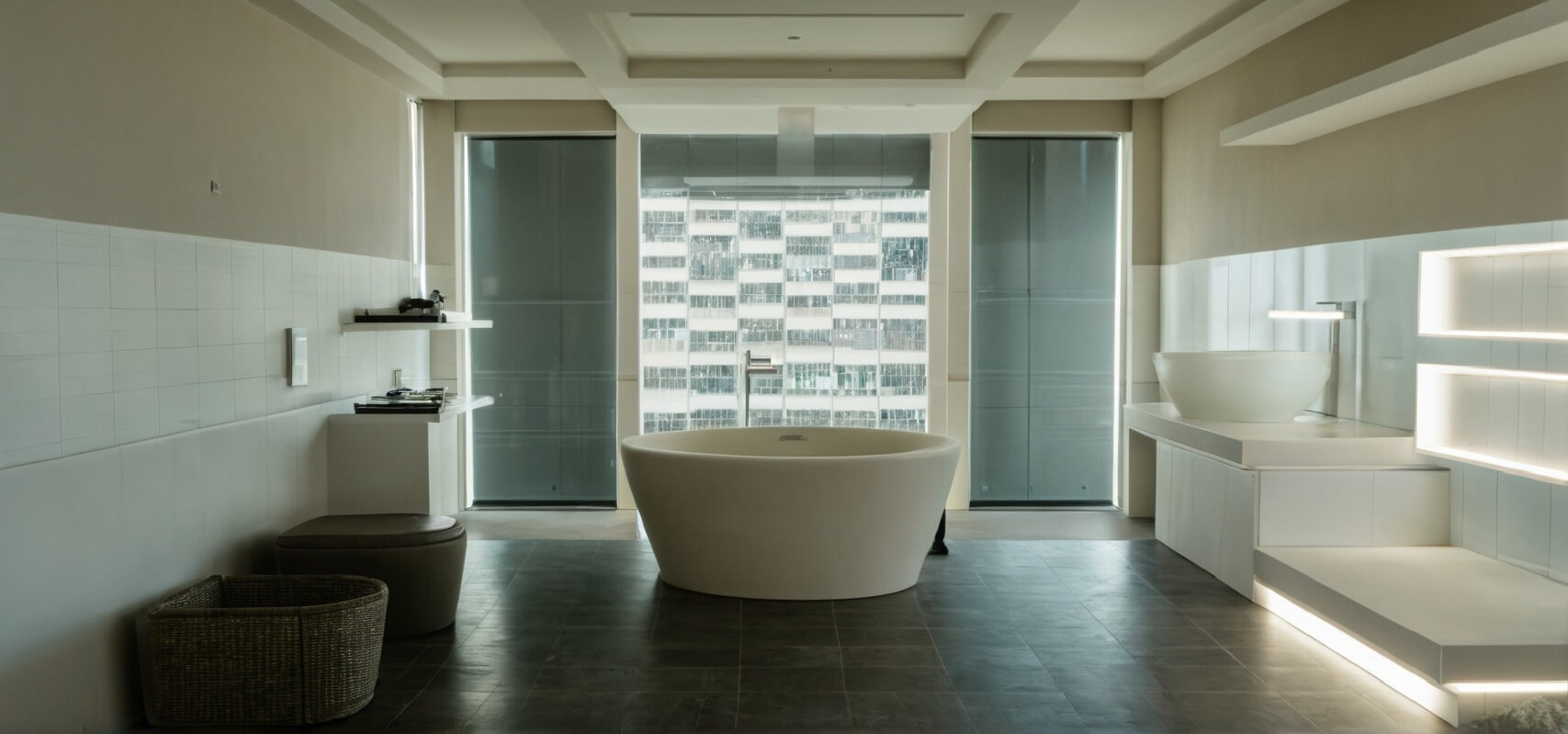
MyArchitectAI, on the other hand, understood the assignment perfectly:
.jpg)
To learn about other approaches to visualizing your design, check our dedicated guide on how to render in SketchUp.
Early Conceptual Exploration (with caveats):
Marketing Teasers (risky):
Never Use Diffusion For:
Diffusion launched in December 2023 with significant fanfare. One year later, the trajectory is concerning:
The "Labs" designation provides cover:

This isn't reassuring for professionals considering workflow integration.
Beyond subscription fees, factor in:
SketchUp Diffusion represents an interesting experiment in accessible AI rendering. Generative AI requires substantial processing resources that can incur equally substantial, variable costs - Trimble passes these to users through capped monthly credits and a paid add-on.
Yes, SketchUp Diffusion could have been revolutionary. Instead, the combination of tight included credit limits, material interpretation failures, geometric distortions, and a complete lack of consistency makes it unsuitable for real project work.
For professionals needing reliable architectural visualization, Diffusion isn't ready. While AI rendering in SketchUp has potential, it is not yet a reliable tool for professional use.
Rendering extensions like V-Ray for SketchUp are still the preferred choice for precise, high-quality renders. Or better yet, modern solutions like MyArchitectAI that deliver on AI's promise without artificial limitations.
Your practice requires professional tools. While Trimble experiments with credit systems and degrading quality, MyArchitectAI delivers what you actually need: unlimited high-quality renders that respect your design intent, maintain consistency, and process in 10-30 seconds.
Ready for AI rendering without limits? Experience MyArchitectAI and discover what unlimited architectural visualization really means!
No. Diffusion is a SketchUp Labs feature only available to SketchUp users with an active Go, Pro, or Studio subscription. The free SketchUp version doesn't include AI features.
Open Extension Warehouse in SketchUp Desktop, search "AI Render" (the new name), click Install, and restart SketchUp. For Web and iPad versions, it's already built in.
Set up your scene with good lighting, use preset styles initially, keep "Respect Model Geometry" high for accuracy, write clear hierarchical prompts, and use negative prompts to avoid unwanted elements.
It's included with paid SketchUp subscriptions ($129-$819/year) but is limited by credits. You get 10-20 renders monthly, depending on your plan. For more, the paid SketchUp AI add-on adds 1,500 credits (150 renders) per month.