Blender’s system requirements are some of the most forgiving in 3D. It’ll launch on a 4-core laptop with 8 GB of RAM. But running Blender and running it well aren’t the same thing.
This guide covers the minimum and recommended specs for Windows, macOS, and Linux in 2026, then matches CPU, GPU, VRAM, and RAM to the work you’re actually doing, whether that’s modeling, rendering, animation, or VFX.
First, let’s break down the minimum requirements.
Blender is lightweight and runs out of the box. You can install the software on a USB, bring it anywhere, plug it into any laptop or computer, and it will run, as long as your device has the following specifications:
| Requirement | Minimum | Recommended |
|---|---|---|
| Windows | ||
| Operating System | Windows 8.1 (64 bit) | Windows 11 |
| CPU | 4 cores with SSE4.2 support | 8 cores |
| RAM | 8 GB | 32 GB |
| GPU | 2 GB VRAM with OpenGL 4.3, Vulkan 1.3 | 8 GB VRAM |
| macOS | ||
| Operating System | macOS 13 (Ventura) | macOS 26 |
| CPU | Apple Silicon | Apple Silicon |
| RAM | 8 GB | 32 GB |
| GPU | Apple Silicon GPU with Metal support | Apple Silicon GPU with Metal support |
| Linux | ||
| Operating System | Distribution with glibc 2.28 or newer (64-bit) | Distribution with glibc 2.28 or newer (64-bit) |
| CPU | 4 cores with SSE4.2 support | 8 cores |
| RAM | 8 GB | 32 GB |
| GPU | 2 GB VRAM with OpenGL 4.3, Vulkan 1.3 | 8 GB VRAM |
These Blender hardware requirements are very modest for a DCC, even allowing you to use a version of Windows that Microsoft no longer supports. Then again, these will only allow you to maximize basic features of Blender.
For example, if you’re planning to use Cycles or EEVEE, which are Blender's built-in rendering engines, you will need a compatible GPU because performance depends on both the model type and generation. For more demanding tasks such as high-poly modeling, 2 GB of VRAM becomes limiting quickly, while fluid simulations can easily overwhelm a 4-core CPU.
It’s important not to confuse recommended specs for Blender with the best possible specs. They are designed to provide a smoother experience for most users and general workflows, not to reach peak performance.
Blender does not specify in their documentation the limitations of using both minimum and recommended requirements, and for good reason… Because every Blender user has their own needs.
Minimum requirements for Blender are meant for running on limited hardware, mainly for basic modeling and simple scenes. Recommended requirements, on the other hand, are intended for more stable performance across everyday production tasks.
For professional or long-term use, higher-end hardware is always preferred.
Let’s break down use-case-specific requirements to help you match your workstation to the type of work you do:
Cycles is Blender’s built-in GPU and CPU renderer and it requires specific GPU models and series. However, not all GPUs are supported the same way. Blender uses different systems depending on your GPU brand, and this determines which models will work.
Here are Blender GPU requirements divided by supported rendering technologies. Under each one, you’ll find the compatible GPU models:
For Windows and Linux users, CUDA allows Blender to use NVIDIA GPUs for rendering. It requires a GPU with a compute capability of 5.0 or higher. Supported GPUs range from older models like the GeForce 800M series and GTX 700 series (e.g., GTX 750 Ti), up to modern cards like the GeForce RTX 20, 30, 40, and 50 series.
.jpg)
For Windows and Linux users, OptiX is best used for those with NVIDIA GPUs with a compute capability of 5.0 and higher and a driver version of at least 535. While OptiX is compatible with NVIDIA GTX models, it is best used by NVIDIA RTX users because OptiX is designed to maximize RTX cards for ray-tracing.
Recommended: NVIDIA RTX 20, 30, 40, 50 series
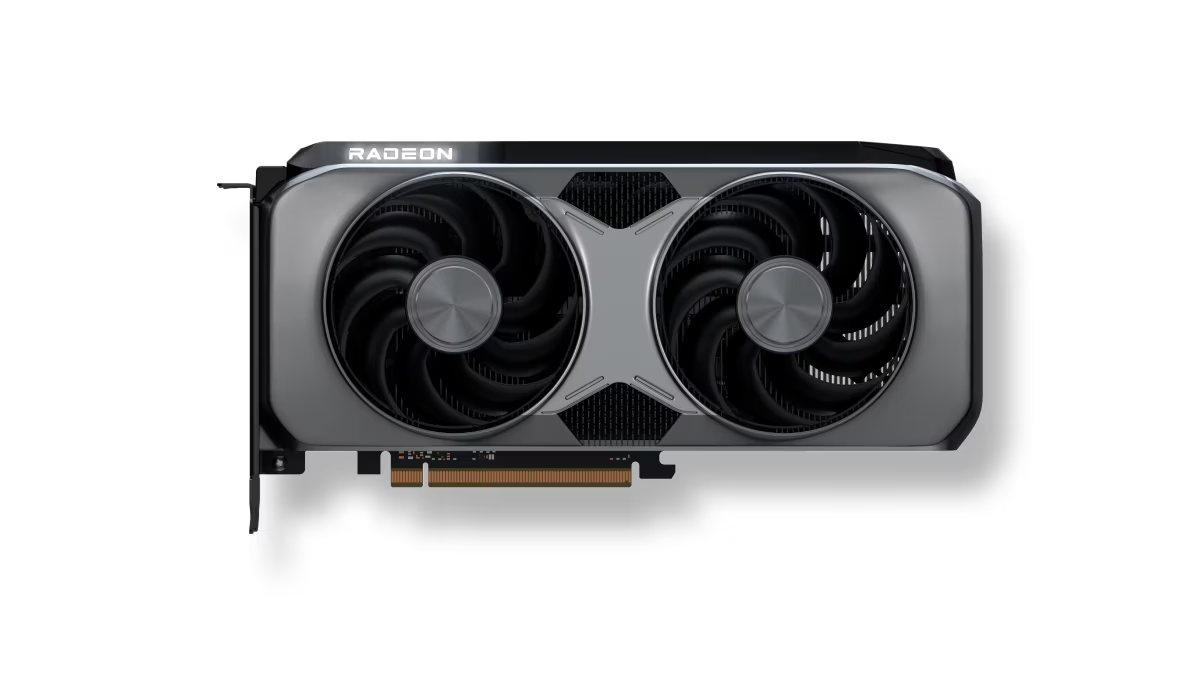
For Windows and Linux users, HIP is also supported for AMD graphics cards with minimum driver versions Radeon Software 24.9.1 for Windows and Radeon Software 23.40 for Linux.
Supported AMD cards: Radeon RX 5000, 6000, 7000, and 9000 series.
OneAPI is Blender’s rendering technology for Windows and Linux that allows GPU-accelerated rendering for Intel Arc graphics cards.
Supported Intel cards: Intel Arc A-Series and B-Series
Metal is Blender's rendering technology for macOS. It supports both GPU-accelerated ray tracing and denoising. It is compatible with all Apple computers with Apple Silicon and macOS 13.0 or newer.
Relying on minimum or even recommended requirements, you may run into a performance ceiling along the way, depending on the type of projects you’re planning to complete with Blender. Basic modeling for example can be done with just minimum requirements, but if you plan to do visual effects down the line, it can become problematic.
Each use case will be using a different component of your workstation. This list will allow you to prioritize which hardware component you’ll invest more in.
Note: These recommendations are based on common workflows and practical experience from Blender users across different industries. Actual performance may vary depending on scene complexity, project requirements, and individual workflow setup.
For learners and designers involved with creating simple assets and small scenes, there’s really no issues sticking with Blender’s minimum requirements, but it’s better if you go with recommended requirements.
.jpg)
Since you’ll mainly be modeling, you’ll be working a lot with your viewport which relies on CPU performance to work smoothly. A good CPU will allow smoother navigation and object manipulation.
Blender’s Cycles is responsible for creating photorealistic images, product renders and archviz stills. However, it will require more than Blender’s minimum and even recommended requirements for optimal performance.
Your GPU is responsible for powering the computations to create the renders while the VRAM assists in fetching data needed by your GPU to do this. If you're in the market for a graphics card, check our guide to the best rendering GPUs.
After modelling, you can make a character come to life by adding movements through animating it. This workflow involves a lot of experimenting, previewing, and refining to get the smoothest and most natural looking animation.
.png)
The CPU is responsible for giving you smooth interactions with your viewport, which is essential in animation work. Higher RAM ensures that playback is stable, since animations involve a lot of moving parts like rigs, keyframes, and cached simulation data. The GPU plays a supporting role by handling viewport rendering, giving you real-time visual feedback so you can preview lighting, materials, and motion more accurately while working.
Adding computer-generated elements to existing footage is not just placing objects into a scene. In Blender, you’re also running complex computations like motion tracking, physics simulations (smoke, fire, debris), and compositing layers together so everything matches lighting, movement, and perspective realistically. Side-by-side with other Blender use cases, this is by far the most hardware-demanding.
VFX processes more types of data at once than rendering. You have simulation caches, tracking data, geometry, multiple image layers, depth maps, masks, and compositing elements. This quickly increases CPU workload and RAM usage, while also putting additional pressure on the GPU and VRAM for previews and rendering.
It’s not difficult to run Blender, but the real challenge is choosing the right setup. Minimum requirements only tell you what won’t work, while recommended requirements give you a smoother baseline experience, but neither should be your final target.
The most important step is understanding what you actually plan to do with Blender. Each workflow has different hardware demands, and your setup should be based on that rather than a one-size-fits-all specification list. Beyond hardware, it also helps to explore AI tools that can support your workflow. Services like render farms allow you to offload heavy tasks such as rendering to the cloud, helping you work efficiently even on lower-end systems.
If hardware is the real bottleneck, cloud-based AI-powered rendering software skips the problem entirely. Tools like MyArchitectAI render in the browser, so your local GPU and RAM stop mattering.
Rule of thumb: spec your RAM and VRAM for your heaviest task, not your average one. If you mostly model but render big scenes occasionally, build for the render. Paying for 32 GB of RAM once beats years of slowdowns.
You can run Blender if your PC meets minimum system requirements (4 core CPU, 8 GB RAM and a GPU with 2 GB VRAM). However, this will only allow you to use the basic features of Blender. Larger scenes and complex models will need more RAM and a stronger GPU to stay responsive.
It can be either, depending on the task at hand. Rendering and viewport shading rely heavily on the GPU, while modeling, simulations, and scene processing depend more on the CPU.
Yes, Blender is good for beginners because it is free and has strong community support, even though it has a significant learning curve.
No. Blender can run without the Internet. However, you’ll need to be connected to the Internet to download assets and install updates.
Blender does not necessarily require a good PC. You can run Blender with a 4-core CPU, 8 GB of RAM, and 2 GB VRAM GPU which is very forgiving for a Digital Content Creation software.
You need at least 8 GB of RAM to run Blender.