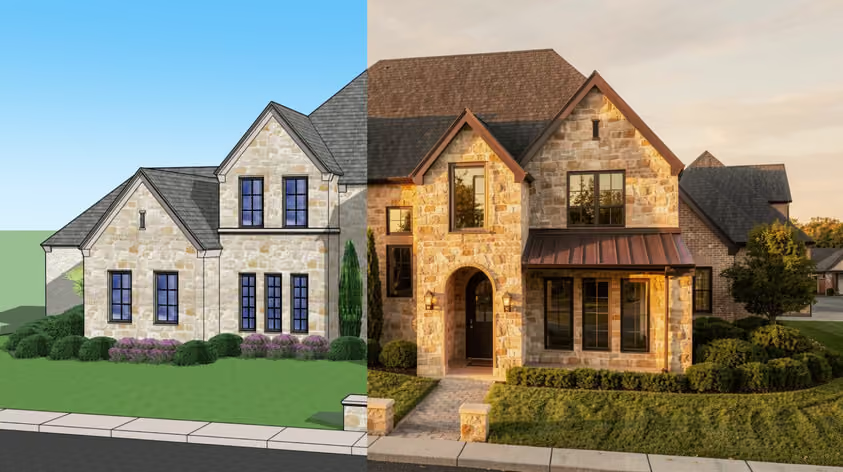
Ajustar correctamente la configuración de renderizado de Lumion es la forma directa de lograr una imagen realista de alta calidad, lista para el cliente. Sin embargo, muchos usuarios abren el modo Foto, aplican un estilo, pulsan renderizar y luego se preguntan por qué el resultado se ve descolorido o extrañamente oscuro.
Si eso te suena, quédate. Te mostraremos todos los ajustes importantes para el renderizado fotorrealista de Lumion, desde el trazado de rayos hasta los materiales, la iluminación y el posprocesamiento. Esto incluye valores específicos que puedes aplicar hoy mismo, además de consejos específicos sobre cómo hacer un renderizado realista en Lumion para interiores y exteriores.
Pero primero para responder a la pregunta de todas las preguntas:
Los estilos integrados de Lumion (realista, interior, etc.) son un punto de partida sólido. Los efectos comunes que agrupan en una pila con un solo clic ahorran algo de tiempo durante las primeras etapas del diseño.
Sin embargo, las soluciones con un solo clic son instantáneas y, por lo tanto, rara vez se traducen de forma lógica en diferentes proyectos. Probablemente sepa cómo y por qué una escena residencial exterior y un concepto de interior de oficina de planta abierta tienen necesidades de iluminación diferentes; sin embargo, un ajuste preestablecido aplica los mismos valores a ambos. Así que, de una forma u otra, terminas con ventanas sobreexpuestas y sombras planas. O peor aún, materiales que no se parecen a lo que representan del mundo real.
Por eso, para aprender a hacer un renderizado realista en Lumion, necesitas ir más allá de los ajustes preestablecidos y empezar a controlar tú mismo cada capa de la pila de efectos.
Vale la pena la molestia inicial, confíe en nuestra palabra. Además, una vez que encuentres tu punto óptimo, podrás guardar todo en una pila de efectos personalizada y reutilizarla en futuros proyectos.
En Lumion, la configuración de renderizado realista incluye el efecto Ray Tracing, y eso debería ser lo primero que habilites. Está en +FX en el modo Foto o Vídeo, donde reemplaza varios parámetros antiguos con mucha más precisión:
De todos los ajustes de renderizado de Lumion, este es el que marca la mayor diferencia visual:
A partir de Lumion 2025, también puedes previsualizar todo lo que hay en la ventana gráfica antes de realizar el renderizado final.
El efecto viene con cuatro niveles de calidad preconfigurados que ajustan automáticamente las muestras y los rebotes:
| Preset | Samples | Bounces | Best for |
|---|---|---|---|
| Low | 16 | 2 | Quick previews |
| Medium | 64 | 4 | Draft renders |
| High | 256 | 6 | Final stills |
| Ultra | 1024 | 8 | Complex scenes |
Para imágenes fijas finales, documentación de soporte de Lumion recomienda de 256 a 512 muestras como rango balanceado (encuentre la prueba previa en 3.8) que mantiene los tiempos de renderizado razonables sin ruido perceptible. El máximo de 2048 no es obligatorio, a menos que estés renderizando escenas con una iluminación indirecta muy compleja.
Nota sobre los rebotes
Los rebotes controlan la cantidad de veces que la luz rebota en las superficies. Más rebotes producirán una luz ambiental más suave y natural, pero a costa de un mayor tiempo de renderizado.
Ten cuidado con estos porque si la iluminación de tu escena es demasiado tenue algunos artículos pueden tener manchas. Si observas paredes irregulares o sombras irregulares, intenta aumentar primero las muestras. Si eso no lo soluciona, reducir los rebotes a 4-6 debería aclarar las cosas.
Activa esta opción para escenas con una geometría de cristal compleja, como tragaluces o tarros decorativos. Permite que el vidrio proyecte las sombras adecuadas e interactúe con la profundidad de campo. En el caso de superficies planas simples (por ejemplo, ventanas), comprueba si dejarlo desactivado supone alguna diferencia visible; normalmente no es así, por lo que no es necesario aumentar los tiempos de renderizado.
Aunque esté perfectamente iluminada, la escena sigue pareciendo falsa si los materiales no responden correctamente a la luz. Lo que necesitas aquí es el editor de materiales de Lumion, que utiliza un proceso completo de PBR (renderizado basado en la física) con un flujo de trabajo de metalidad/rugosidad. Esta es otra de las áreas más impactantes que puedes modificar en la configuración de renderizado de Lumion.
Usa estos controles deslizantes:
El control deslizante Weathering en la parte inferior del editor añade antigüedad e imperfección (suciedad, bordes desgastados, musgo, óxido, etc.) mediante ajustes preestablecidos integrados.
La guía oficial de materiales de Lumion señala que incluso la erosión sutil marca una diferencia notable en realismo.
El sistema de medición real de Lumion ayuda con las texturas mal escaladas.
Puedes tener modelos detallados y materiales perfectos, pero una mala configuración de iluminación de Lumion hará que todo quede plano y quede una imagen opaca. Lumion divide la luz en dos sistemas: natural (sol y cielo) y artificial (focos, omniluces, luces de área).
Controla la posición del sol mediante el efecto Sol o el efecto Cielos reales en el modo Fotografía.
Lumion ofrece focos, omniluces y luces de área. El brillo se mide en lúmenes (para focos y omniluminces) y en liendres (para luces de área y materiales emisivos). Ve despacio, no añadas demasiadas luces ni pongas su brillo combinado demasiado alto en los renderizados con trazo de rayos. Esto suele provocar paredes con manchas de colores irregulares y sombras desiguales, especialmente en escenas interiores cerradas.
La solución suele ser una de las siguientes:
Un punto de referencia útil de Base de conocimientos de Lumion es de aproximadamente 20 lúmenes por pie cuadrado para una habitación bien iluminada. Por lo tanto, una habitación de 9 pies × 12 pies necesita alrededor de 2.160 lúmenes en total en todos los accesorios.
Cualquier superficie puede emitir luz si se establece su valor de emisividad en el editor de materiales. Esto es útil para pantallas de TV, letreros de neón, elementos LED y paneles retroiluminados. No olvides que aumentan el brillo total; ten esto en cuenta a la hora de equilibrar los ajustes de iluminación artificial de Lumion.
El efecto de corrección de color permite ajustar el aspecto final de la imagen, como en un Lightroom integrado. Este efecto forma parte de la configuración visual de Lumion que determina la calidad general de la impresión.
Lumion ejecuta una función de exposición automática de forma predeterminada. Para mantener la coherencia en varias vistas de cámara en el mismo proyecto, considera la posibilidad de desactivarla.
Configurar el control deslizante de exposición manualmente para evitar que el brillo cambie cada vez que se gira la cámara, lo que los usuarios destacan como una frustración común al renderizar por lotes un conjunto de vistas.
Puedes desactivar la exposición automática dentro del efecto Corrección de color.
Probablemente ya lo sepas, pero la temperatura hace que toda la imagen se caliente o enfríe. Por ejemplo, para una atmósfera interior cálida, empújala ligeramente hacia el ámbar; si estás modelizando un exterior moderno y nítido, mantenlo neutro o ligeramente frío.
El matiz ajusta el equilibrio verde-magenta y, por lo general, es mejor dejarlo cerca de cero, a menos que estés corrigiendo un color de cielo específico.
En las escenas interiores, la luz que entra por las ventanas y puertas rebota varias veces antes de llegar a las esquinas. Como si eso no fuera suficiente, las luminarias artificiales suelen ser visibles incluso cuando el sol es fuerte en el exterior.
Aquí se explica cómo abordar específicamente la configuración de renderizado interior de Lumion.
Habilite el trazado de rayos. Es donde más se benefician los interiores, ya que los rebotes de luz precisos llenan las habitaciones de forma natural. El propio Lumion la guía de configuración recomienda empezando con Real Skies y Color Correction como efectos base, y luego añadiendo el efecto Ray Tracing en la parte superior.
Ajusta el brillo del cielo en Real Skies para controlar la cantidad de luz natural ambiental que entra en la habitación a través de las ventanas. Luego, coloca tus luces artificiales en capas y ajusta sus valores de lúmenes. Consigue el equilibrio de iluminación justo antes de tocar la corrección de color. Es mucho más fácil ajustar la exposición y las luces una vez configuradas las fuentes de luz.
Para materiales translúcidos como cortinas o pantallas de lámparas, aumente el valor de dispersión del subsuelo en el editor de materiales. Permite que la luz penetre y se disperse a través de la tela.
Los exteriores se basan en gran medida en las condiciones del cielo y el contexto ambiental.
Para lograr una profundidad atmosférica, añada una niebla sutil. Separa los elementos del primer plano del fondo de la misma manera que lo hace la perspectiva atmosférica en la fotografía real.
Una vez que hayas seleccionado la mejor configuración de renderizado de Lumion para un proyecto, guarda tu pila de efectos para poder reutilizarla. En el modo Foto, puedes guardar tu configuración de efectos como una pila de efectos personalizada (archivo.LME), que almacena todos los efectos y sus valores.
El Lista maestra de efectos está disponible desde Lumion 2023. Cualquier efecto que añadas a la lista maestra se aplica automáticamente a todos los espacios fotográficos de tu proyecto. Cambia un valor una vez y se actualizará en todas partes. Esto resulta especialmente útil para los ajustes de corrección de color y trazado de rayos, que deben permanecer uniformes en todas las vistas.
También puedes usar Estilos integrados de Lumion como puntos de partida. Aplica un estilo, abre la pila de efectos y modifica los ajustes individuales para adaptarlos a tu escena. Los ajustes preestablecidos de renderizado de Lumion integrados en Styles cubren escenarios comunes (realista, interior RT, exterior, etc.), pero siempre se benefician de los ajustes específicos de la escena.
| Setting | Interior | Exterior |
|---|---|---|
| Ray Tracing | High or Ultra (256–512 samples) | Medium or High (64–256 samples) |
| Bounces | 6–8 | 4–6 |
| Sky Brightness | Lower (let artificial lights lead) | Higher (ambient fill) |
| Exposure | Manual, slight positive (+0.3 to +0.6) | Auto or manual neutral |
| Focal Length | 24–35mm (wider for small rooms) | 24–50mm |
| Fog | Off or very subtle | Subtle for depth separation |
| Weathering | Light (0.1–0.3) | Moderate (0.2–0.5) |
Incluso con los mejores ajustes de renderizado realista de Lumion, siempre hay espacio para mejorar aún más la calidad en el posprocesamiento. Ahí es donde está MyArchitectAI Potenciador Lumion AI entra.
MyArchitectAI es una herramienta de renderizado basada en inteligencia artificial que puede tomar tus renderizados de Lumion terminados y refinarlos reduciendo el ruido, mejorando los detalles de las texturas, agudizando la iluminación y haciendo que las personas en 3D parezcan más realistas. Y es supersimple. Sube tu renderizado, configura un regulador de creatividad para controlar los ajustes que realiza la IA y obtén una versión mejorada en cuestión de segundos, sin necesidad de tener conocimientos de Photoshop.
También funciona como un renderizador independiente. Si quieres evitar por completo las exigencias de hardware y los largos tiempos de renderizado que conlleva un renderizado realista en Lumion, puedes subir una captura de pantalla o exportar tu modelo directamente a MyArchitectAI. Producirá un resultado fotorrealista en menos de 10 segundos, completamente en la nube, en cualquier dispositivo, incluidos los Mac.
Pruébalo con 10 renderizados gratuitos aquí.
Las mejoras más importantes provienen de la habilitación del trazado de rayos, el uso de materiales PBR con los valores adecuados de rugosidad y reflectividad y el control manual de la exposición mediante el efecto de corrección de color. Añadir elementos degradantes a las superficies y rellenar las escenas con recursos de alta calidad de la biblioteca de Lumion también marca la diferencia. El renderizado realista en Lumion se reduce a superponer estos ajustes unos sobre otros.
Empieza con uno de los estilos integrados de Lumion (como Interior RT o Realistic) como base y, a continuación, ajusta gradualmente los efectos individuales. Concéntrese en la calidad del trazado de rayos (media o alta está bien para aprender), la corrección del color (especialmente la exposición y la temperatura) y los valores de rugosidad del material. Guarda los ajustes ajustados como una pila de efectos personalizada para que puedas ir ampliándolos con el tiempo.
El trazado de rayos se introdujo en Lumion 2023 y requiere una tarjeta gráfica compatible con RTX. Está disponible tanto en Lumion Pro como en Lumion Studio. Las versiones anteriores utilizan el proceso de rasterización, que se basa en efectos separados de tragaluz, sombra, reflexión e hiperluz para obtener resultados similares, aunque el límite de calidad es inferior.