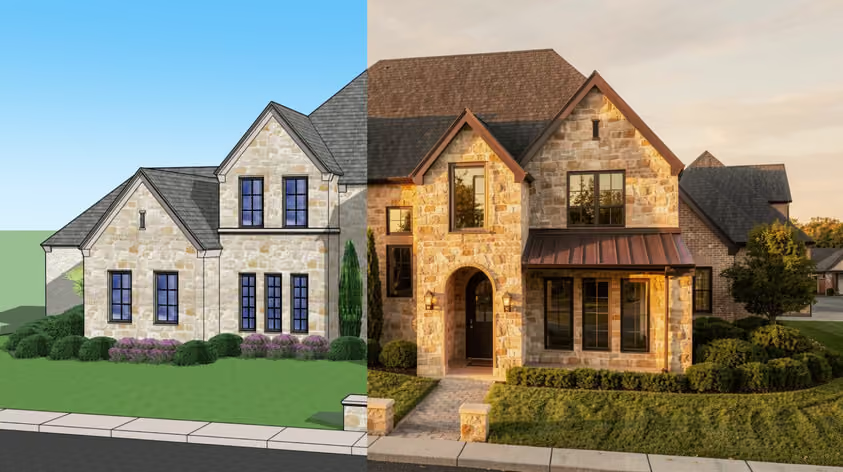
Le réglage correct des paramètres de rendu de Lumion est le moyen le plus direct d'obtenir un visuel réaliste de haute qualité, prêt à l'emploi pour le client. Pourtant, de nombreux utilisateurs ouvrent le mode photo, appliquent un style, cliquent sur Rendu, puis se demandent pourquoi le résultat semble délavé ou étrangement sombre.
Si cela vous ressemble, asseyez-vous. Nous vous expliquerons tous les paramètres importants pour le rendu photoréaliste Lumion, du traçage des rayons aux matériaux, en passant par l'éclairage et le post-traitement. Cela inclut des valeurs spécifiques que vous pouvez saisir dès aujourd'hui, ainsi que des conseils distincts sur la façon de créer un rendu réaliste dans Lumion pour les intérieurs et les extérieurs.
Mais d'abord, pour répondre à la question de toutes les questions :
Les styles intégrés de Lumion (réaliste, intérieur, etc.) constituent un bon point de départ. Les effets courants qu'ils regroupent dans une pile en un clic permettent de gagner du temps lors des premières étapes de conception.
Mais les solutions en un clic sont instantanées et, de ce fait, elles se traduisent rarement de manière logique d'un projet à l'autre. Vous savez probablement comment et pourquoi une scène résidentielle extérieure et un concept d'intérieur de bureau à aire ouverte ont des besoins d'éclairage différents ; pourtant, un préréglage applique les mêmes valeurs aux deux. Donc, d'une manière ou d'une autre, vous vous retrouvez avec des fenêtres surexposées et des ombres plates. Ou pire encore, des matériaux qui ne ressemblent pas à ce qu'ils représentent dans le monde réel.
C'est pourquoi, pour apprendre à créer un rendu réaliste dans Lumion, vous devez aller au-delà des préréglages et commencer à contrôler vous-même chaque couche de la pile d'effets.
Les premiers tracas en valent la peine, croyez-nous sur parole. De plus, une fois que vous avez trouvé votre point idéal, vous pouvez tout enregistrer sous forme de pile d'effets personnalisée et la réutiliser dans de futurs projets.
Dans Lumion, les paramètres de rendu réalistes incluent l'effet Ray Tracing, qui devrait être la première chose que vous activez. Il se trouve sous +FX en mode photo ou vidéo, où il remplace plusieurs anciens paramètres avec beaucoup plus de précision :
Parmi tous les paramètres de rendu de Lumion, celui-ci est celui qui fait la plus grande différence visuelle :
À partir de Lumion 2025, vous pouvez également prévisualiser tout ce qui s'affiche dans la fenêtre d'affichage avant d'effectuer le rendu final.
L'effet est livré avec quatre niveaux de qualité préconfigurés qui ajustent automatiquement les échantillons et les rebonds :
| Preset | Samples | Bounces | Best for |
|---|---|---|---|
| Low | 16 | 2 | Quick previews |
| Medium | 64 | 4 | Draft renders |
| High | 256 | 6 | Final stills |
| Ultra | 1024 | 8 | Complex scenes |
Pour les images fixes finales, la documentation d'assistance de Lumion recommande 256 à 512 échantillons comme plage équilibrée (trouvez le pré-test à 3.8) qui maintient des temps de rendu raisonnables sans bruit perceptible. Le maximum de 2048 n'est pas obligatoire, sauf si vous créez des scènes avec un éclairage indirect très complexe.
Remarque à propos des rebonds
Les rebonds contrôlent le nombre de fois que la lumière ricoche sur une surface. Un plus grand nombre de rebonds produira une lumière ambiante plus douce et plus naturelle, mais au prix d'un temps de rendu plus long.
Utilisez ces derniers avec prudence, car si l'éclairage de votre scène est trop faible certains articles peuvent présenter des taches. Si vous remarquez des murs inégaux ou des ombres inégales, essayez d'abord d'augmenter le nombre d'échantillons. Si cela ne résout pas le problème, réduire les rebonds à 4—6 devrait régler le problème.
Activez cette option pour les scènes présentant une géométrie de verre complexe, comme les lucarnes ou les bocaux décoratifs. Il permet au verre de projeter des ombres appropriées et d'interagir avec la profondeur de champ. Pour les surfaces planes simples (par exemple, les fenêtres), vérifiez si le fait de ne pas le désactiver fait une différence visible ; ce n'est généralement pas le cas, il n'est donc pas nécessaire d'augmenter les temps de rendu.
Même si elle est parfaitement éclairée, la scène reste fausse si les matériaux ne réagissent pas correctement à la lumière. Ce dont vous avez besoin ici, c'est l'éditeur de matériaux de Lumion, qui utilise un pipeline PBR (rendu physique basé sur le rendu) complet avec un flux de travail Metalness/Rughness. Il s'agit d'un autre des domaines les plus importants à modifier dans vos paramètres de rendu Lumion.
Utilisez ces curseurs :
Le curseur Weathering situé en bas de l'éditeur ajoute l'âge et les imperfections (saleté, bords usés, mousse, rouille, etc.) à l'aide de préréglages intégrés.
Le guide officiel des matériaux de Lumion indique que même les intempéries subtiles fait une différence notable dans le réalisme.
Le système de mesure réel de Lumion aide à corriger les textures mal dimensionnées.
Vous pouvez avoir des modèles détaillés et des matériaux parfaits, mais des réglages d'éclairage Lumion médiocres peuvent tout de même rendre l'image terne. Lumion divise la lumière en deux systèmes : naturel (soleil et ciel) et artificiel (projecteurs, omnilights, éclairages de zone).
Contrôlez la position du soleil grâce à l'effet Soleil ou à l'effet Ciel réel en mode photo.
Lumion propose des projecteurs, des omnilights et des éclairages de zone. La luminosité est mesurée en lumens (pour les projecteurs et les omnilights) et en nits (pour les éclairages de zone et les matériaux émissifs). Allez-y lentement, n'ajoutez pas trop de lumières et ne réglez pas leur luminosité combinée trop élevée dans les rendus par ray-tracing. Cela provoque souvent des murs tachetés et de couleurs inégales et des ombres inégales, en particulier dans les scènes intérieures fermées.
Le correctif est généralement l'un des suivants :
Une référence utile de Base de connaissances de Lumion est d'environ 20 lumens par pied carré pour une pièce bien éclairée. Ainsi, une chambre de 9 pieds × 12 pieds a besoin d'environ 2 160 lumens au total pour tous les luminaires.
N'importe quelle surface peut émettre de la lumière si vous définissez sa valeur d'émissivité dans l'éditeur de matériaux. Ceci est utile pour les écrans de télévision, les enseignes au néon, les fonctions LED et les panneaux rétroéclairés. N'oubliez pas qu'ils augmentent la luminosité totale ; tenez-en compte lorsque vous équilibrez vos paramètres d'éclairage artificiel Lumion.
L'effet de correction des couleurs vous permet de peaufiner l'aspect final de votre image, comme dans Lightroom intégré. Cet effet fait partie des paramètres visuels de Lumion qui façonnent la qualité globale de votre sortie.
Lumion exécute une fonction d'exposition automatique par défaut. Pour garantir la cohérence entre plusieurs vues de caméra dans le même projet, pensez à la désactiver.
Réglez le curseur d'exposition manuellement pour éviter de modifier la luminosité à chaque fois que vous faites pivoter l'appareil photo, ce que les utilisateurs considèrent comme une source de frustration courante lors du rendu par lots d'un ensemble de vues.
Vous pouvez désactiver l'exposition automatique dans l'effet de correction des couleurs.
Vous le savez probablement déjà, mais la température réchauffe ou refroidit l'ensemble de l'image. Par exemple, pour créer une atmosphère intérieure chaleureuse, placez-le légèrement vers l'ambre ; si vous souhaitez créer un extérieur moderne et net, gardez-le neutre ou légèrement frais.
La teinte ajuste l'équilibre vert-magenta et il est généralement préférable de la laisser proche de zéro, sauf si vous corrigez pour une couleur de ciel spécifique.
Les scènes intérieures impliquent de la lumière qui entre par les fenêtres et les portes rebondit plusieurs fois avant d'atteindre les coins. Comme cela ne suffit pas, les luminaires artificiels doivent généralement être visibles même lorsque le soleil est fort à l'extérieur.
Voici comment aborder spécifiquement les paramètres de rendu intérieur de Lumion.
Activez le ray tracing. C'est là que les intérieurs en profitent le plus, car des rebonds lumineux précis remplissent naturellement les pièces. Le propre de Lumion le guide de configuration recommande en commençant par Real Skies et Color Correction comme effets de base, puis en ajoutant l'effet Ray Tracing en haut.
Réglez la luminosité du ciel sous un ciel réel pour contrôler la quantité de lumière ambiante qui pénètre dans la pièce à travers les fenêtres. Ajoutez ensuite vos lumières artificielles et ajustez leurs valeurs de lumen. Réglez l'équilibre de la lumière avant de toucher à la correction des couleurs. Il est beaucoup plus facile de modifier l'exposition et les hautes lumières une fois que vos sources de lumière sont réglées.
Pour les matériaux translucides tels que les rideaux ou les abat-jour, augmentez la valeur Subsurface Scattering dans l'éditeur de matériaux. Il laisse la lumière pénétrer et se diffuser à travers le tissu.
Les extérieurs dépendent fortement des conditions du ciel et du contexte environnemental.
Pour augmenter la profondeur de l'atmosphère, ajoutez un léger brouillard. Il sépare les éléments du premier plan de l'arrière-plan comme le fait la perspective atmosphérique dans une photographie réelle.
Une fois que vous avez défini les meilleurs paramètres de rendu Lumion pour un projet, enregistrez votre pile d'effets pour pouvoir la réutiliser. En mode Photo, vous pouvez enregistrer la configuration de vos effets sous la forme d'une pile d'effets personnalisée (fichier .LME), qui stocke chaque effet et ses valeurs.
Le Liste des effets principaux est disponible depuis Lumion 2023. Tout effet que vous ajoutez à la liste principale s'applique automatiquement à chaque emplacement photo de votre projet. Modifiez une valeur une fois pour qu'elle soit mise à jour partout. Cela est particulièrement pratique pour les paramètres de correction des couleurs et de ray tracing qui doivent rester cohérents dans toutes les vues.
Vous pouvez également utiliser Styles intégrés de Lumion comme points de départ. Appliquez un style, puis ouvrez la pile d'effets et modifiez les paramètres individuels en fonction de votre scène. Les préréglages de rendu Lumion intégrés à Styles couvrent des scénarios courants (réaliste, intérieur, extérieur, etc.), mais ils bénéficient toujours d'ajustements spécifiques à la scène.
| Setting | Interior | Exterior |
|---|---|---|
| Ray Tracing | High or Ultra (256–512 samples) | Medium or High (64–256 samples) |
| Bounces | 6–8 | 4–6 |
| Sky Brightness | Lower (let artificial lights lead) | Higher (ambient fill) |
| Exposure | Manual, slight positive (+0.3 to +0.6) | Auto or manual neutral |
| Focal Length | 24–35mm (wider for small rooms) | 24–50mm |
| Fog | Off or very subtle | Subtle for depth separation |
| Weathering | Light (0.1–0.3) | Moderate (0.2–0.5) |
Même avec les meilleurs paramètres de rendu réalistes de Lumion sélectionnés, il est toujours possible d'améliorer encore la qualité en matière de post-traitement. C'est là que se trouve MyArchitectAI Améliorateur Lumion AI entre.
MyArchitectAI est un outil de rendu basé sur l'IA qui peut utiliser vos rendus Lumion finis et les affiner en réduisant le bruit, en améliorant les détails de texture, en accentuant la netteté de l'éclairage et en donnant aux personnages 3D un aspect plus réaliste. Et c'est très simple. Téléchargez votre rendu, définissez un curseur de créativité pour contrôler les ajustements de l'IA et récupérez une version améliorée en quelques secondes ; aucune compétence Photoshop n'est requise.
Il fonctionne également comme un moteur de rendu autonome. Si vous souhaitez éviter les exigences matérielles et les longs temps de rendu associés au rendu réaliste dans Lumion, vous pouvez télécharger une capture d'écran ou exporter votre modèle directement vers MyArchitectAI. Il produira un résultat photoréaliste en moins de 10 secondes, entièrement dans le cloud, sur n'importe quel appareil, y compris les Mac.
Essayez-le avec 10 rendus gratuits ici.
Les améliorations les plus importantes proviennent de l'activation du ray tracing, de l'utilisation de matériaux PBR avec des valeurs de rugosité et de réflectivité appropriées et du contrôle manuel de l'exposition grâce à l'effet de correction des couleurs. L'ajout d'éléments de résistance aux intempéries sur les surfaces et le remplissage des scènes avec des ressources de haute qualité provenant de la bibliothèque de Lumion font également la différence. Le rendu réaliste dans Lumion se résume à superposer ces réglages les uns sur les autres.
Commencez par l'un des styles intégrés de Lumion (comme Interior RT ou Realistic) comme base, puis ajustez progressivement les effets individuels. Concentrez-vous sur la qualité du ray tracing (moyenne ou élevée pour l'apprentissage), la correction des couleurs (en particulier l'exposition et la température) et les valeurs de rugosité du matériau. Enregistrez vos paramètres ajustés sous forme de pile d'effets personnalisée afin de pouvoir les développer au fil du temps.
Le ray tracing a été introduit dans Lumion 2023 et nécessite une carte graphique compatible RTX. Il est disponible dans Lumion Pro et Lumion Studio. Les anciennes versions utilisaient le pipeline de rastérisation, qui reposait sur des effets Skylight, Shadow, Reflection et Hyperlight distincts pour obtenir des résultats similaires, bien que le plafond de qualité soit inférieur.