
V-Ray is a hardware-dependent tool. The quality, speed, and responsiveness you get are directly tied to your workstation's specs. That said, it's essential to understand what V-Ray's minimum and recommended system requirements actually mean in practice.
By the end of this guide, you'll know what real-world performance looks like with both minimum and recommended specs, the key differences between CPU, GPU, and hybrid rendering, and whether upgrading your current hardware will genuinely improve your workflow. We'll also cover a lightweight V-Ray alternative if you can't meet the high system requirements.
The minimum requirements below allow you to run V-Ray Standalone and use its basic features, handling simple scenes with no complicated setups and low polygon counts. V-Ray recommended system requirements gives you more freedom — enabling greater realism, more materials and asset usage, and faster rendering times.
V-Ray’s performance scales almost linearly with hardware power and heavily depends on scene complexity. For example:
Because V-Ray scales with hardware capability rather than fixed thresholds, understanding the role of each component is more important than simply reading the table.
Let’s take a closer look and determine what you actually need.
V-Ray doesn’t require a dedicated GPU to run, as it is designed to render with your CPU by default. However, without a dedicated graphics card, you’ll miss out on many of V-Ray’s capabilities, primarily hybrid rendering.
Also, even when using V-Ray’s CPU rendering engine, certain tasks such as denoising and lens effects are automatically handled by the GPU for efficiency.
Relying solely on the CPU will result in significantly longer render times. This is why it is recommended that even when you’ll mainly be using V-Ray CPU, you should have at least the minimum recommended GPU.
At the moment, V-Ray supports NVIDIA GPUs from the Maxwell generation and later (900 series and above) with 5.2 compute capability and at least 2GB of VRAM.
Here are a few examples of compatible GPUs:
5.2 compute capability:
6.1 compute capability:
8.9 compute capability:
12.0 compute capability:
12.1 compute capability:
For faster GPU rendering, some users implement GPU stacking, where two or more GPUs are used together to increase render performance. For highest efficiency, combine GPUs from the same generation.
Another approach is cloud rendering, where the whole process is offloaded to high-performance cloud GPUs, allowing you to render on any machine.
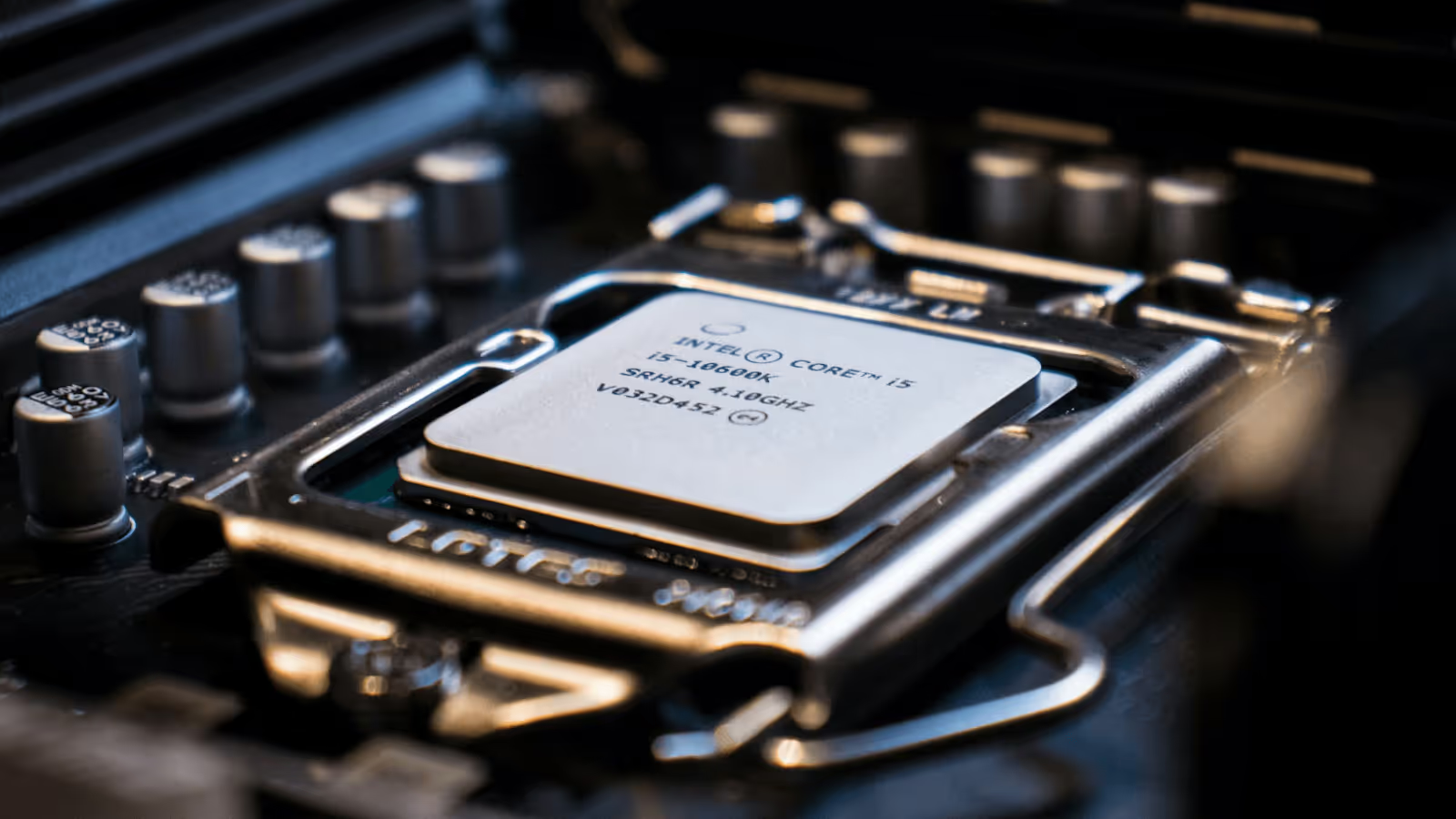
A compatible CPU (processor) is essential to run V-Ray. Even when using the GPU rendering engine, the CPU is responsible for system operations, scene preparation, and data transfer. In other words, a faster CPU can still improve overall render performance, even in GPU-based workflows. CPU rendering also plays a crucial role in achieving higher accuracy and handling scenes that exceed your GPU’s available VRAM.
At the moment, V-Ray supports both Intel and AMD processors with AVX2 support.
Finding CPUs with AVX2 support is not difficult, as most Intel and AMD processors released in the last 5+ years include it. You can consider Intel 4th generation and newer, or any AMD Ryzen series processor.
Examples of compatible CPUs:
Memory does not directly increase render speed, but it determines whether your scene can render at all. If a project requires more memory than your system has available, rendering will fail. For smooth performance, your RAM and VRAM should comfortably exceed the size of your typical scene.
V-Ray recommends a minimum of 8GB of RAM for CPU rendering and at least 2GB of VRAM for GPU rendering when working with simple scenes.
As long as you have enough free storage to install V-Ray and store your scenes, renders, and output files, you shouldn’t run into issues. Generally, 120GB of storage is more than sufficient for your design software, V-Ray, and downloadable assets.
For better overall responsiveness, consider using a Solid State Drive (SSD) instead of a Hard Disk Drive (HDD). While storage type does not affect render quality, an SSD significantly improves boot times, file saving speeds, and file access performance.
If you’re aiming for top-tier performance, especially in architectural visualization, Windows remains the most widely used option. It offers broad hardware compatibility, strong driver support, and full access to both CPU and (NVIDIA) GPU rendering features.
While macOS fully supports V-Ray CPU rendering, it does not support NVIDIA GPUs. This means CUDA-based GPU rendering is not available on Mac systems. Since V-Ray GPU primarily relies on NVIDIA hardware for optimal performance, users who plan to use GPU acceleration will generally experience better compatibility and performance with Windows or Linux.
While V-Ray does run on Linux, its availability is limited to select versions. Not all V-Ray plugins are supported on Linux (e.g. V-Ray for Sketchup and V-Ray for Blender), so access depends on the specific host application.
Even with high-end hardware, your system is only as stable as its power supply. If your PSU (Power Supply Unit) cannot deliver enough wattage to handle the CPU and GPU under full rendering load, you may experience crashes, freezes, system instability, or, in worst-case scenarios, permanent hardware damage.
Chaos does not specify an official PSU wattage requirement for V-Ray, so the best approach is to estimate based on your specific CPU and GPU combination.
For example, a setup using an Intel i5-4460 and a GeForce GTX 970 for rendering small scenes should run on at least a 400–500W PSU.
This said, for more demanding configurations, especially with high-end CPUs or multiple GPUs, you will need significantly more wattage.
To determine the appropriate wattage for your system, you can use an online PSU calculator and always allow some headroom (around 20–30%) above your estimated load for stability and future upgrades.
Even with powerful hardware, you may still encounter lag or slowdowns—especially when working with large, complex, and highly detailed scenes. With V-Ray, the creative possibilities are almost limitless. However, in the pursuit of maximum realism, it’s easy to forget that your hardware still has limits.
Here are practical ways to optimize your scene and achieve high-quality results without overloading your system.
Be selective about which models truly need high levels of detail. Reducing unnecessary geometry lowers the total polygon count and significantly improves render performance.
Not every object needs full detailing. Nuts, bolts, hinges, and internal components may never be visible in the final render. Focus your detail where the camera actually sees it.
While adding multiple light sources can enhance realism, too many lights can oversaturate your scene and increase render times, especially at higher resolutions.
Instead:
- Keep light intensity balanced and realistic.
- Adjust and control lights individually.
- Use V-Ray’s Dome Light as a skylight when possible, as it is generally more efficient to render.
Careful lighting setup often produces better results than simply adding more lights.
In V-Ray’s render settings, Max Subdivs and Noise Threshold (Noise Level) directly affect the balance between render quality and render time. For a higher quality render, increase max subdivs and decrease noise levels. For faster render times, do the opposite.
It may seem counterintuitive to allow more noise, but V-Ray includes a powerful Denoiser tool. Rendering slightly noisier images and cleaning them up with the Denoiser is often much faster than rendering at extremely low noise levels from the start.
Cloud rendering is an alternative to V-Ray for those who want high-quality renders but don't have the required workstation specs to support the heavy rendering workloads.
Instead of relying on your local setup, cloud rendering shifts the entire process to remote high-performance servers.
Here’s how cloud rendering usually works:
With tools like MyArchitectAI, your local computer does not do the heavy lifting, just data transfer. You’re also safe from workstation limits. You get the same high-quality results regardless of what model GPU you have, how much VRAM you have, how large your storage is, how powerful your PSU is, and whatnot.
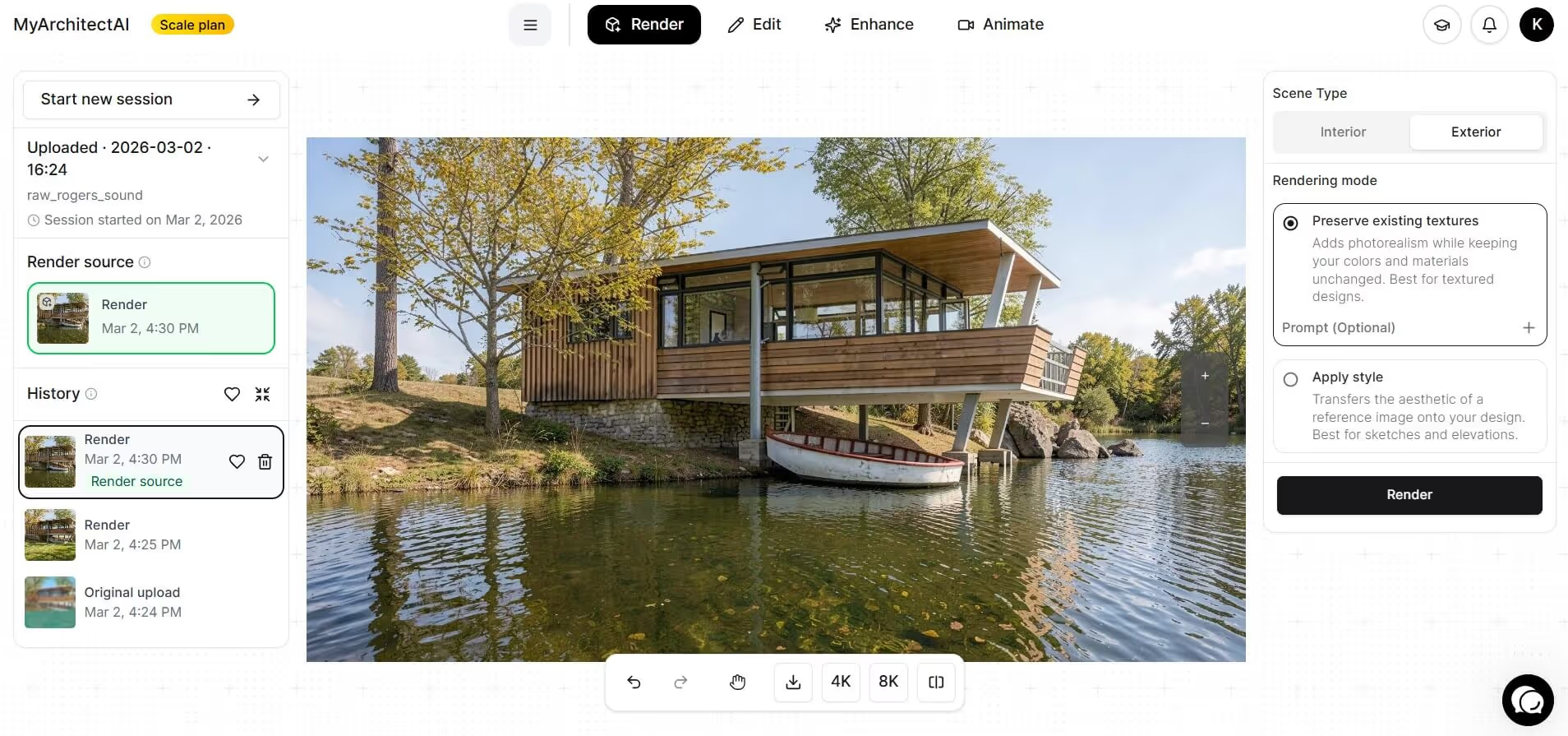
Unlike traditional rendering engines, AI-powered cloud-rendering tools like MyArchitectAI do not require manual work. The still render above was created without manual lighting setup, configuring materials, adjusting camera, nor tweaking any render settings. The raw image was uploaded and the final render was produced in less than 30 seconds. Tools like MyArchitectAI remove complexity and do everything automatically with AI-powered technology.
Using these tools makes sense if:
V-Ray hardware requirements scale depending on the level of realism and complexity your project requires. If you’re only working on quick and small renders, you may get away with using just the minimum requirements — 8 GB RAM, 2GB VRAM, an i5-4460 (CPU), and a NVIDIA 900 series (GPU) with a 400 watt PSU.
But if you’re aiming to take advantage of V-Ray’s high realism (practically unlimited) capacity, you’re better off getting the newest technology as investing in high-end hardware will become a necessity.
That’s exactly why cloud-based tools are quickly gaining popularity.
Since tools like MyArchitectAI are running on the cloud, you’ll be able to produce high-quality visual results without the fear of experiencing CPU/GPU limitations, RAM bottlenecks, and lack of storage among many more system/hardware constraints.
If your goal is maximum control and physically-accurate rendering at scale, V-Ray remains one of the most powerful rendering engines available today.
V-Ray supports three rendering engines: CPU, GPU, and Hybrid (CPU+GPU). So it can be either, depending on which engine you use. CPU rendering (V-Ray) relies entirely on your processor and works with the full V-Ray feature set. GPU rendering (V-Ray GPU) offloads the work to your graphics card for significantly faster feedback, but has some feature limitations. Hybrid mode uses both CPU and GPU simultaneously, which is the best option (if your hardware supports it).
V-Ray GPU requires an NVIDIA graphics card from the Maxwell generation (GeForce GTX 900 series / Quadro M series) or newer. That covers most NVIDIA cards released from 2014 onward. AMD GPUs are not supported.
V-Ray needs a minimum of 8 GB RAM. The larger and more complex your scenes are, the more RAM you’ll need. According to Chaos documentation, a good rule of thumb is having at least 2x your VRAM. So if you have a 2GB VRAM, you should have at least 4GB RAM.

.webp)