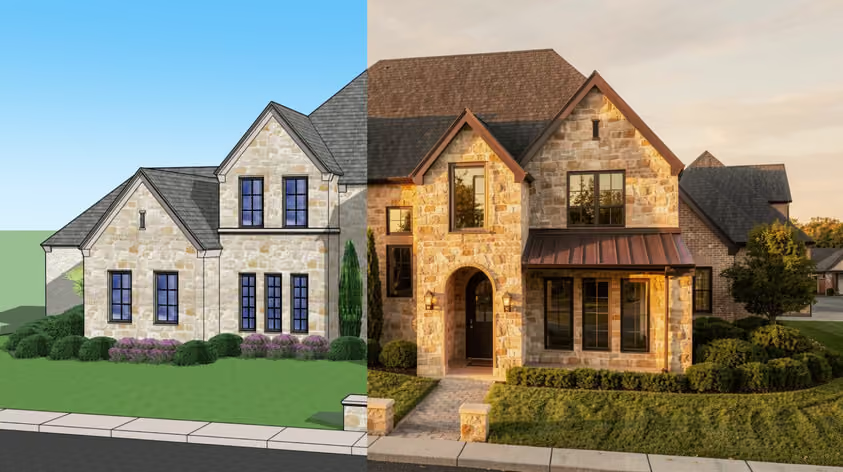
SketchUp is one of the most popular 3D modeling tools for architects, designers, and engineers. Once you move into larger scenes, detailed geometry, or heavy extensions, performance depends heavily on your hardware.
This guide breaks down the SketchUp system requirements in 2026, explains what actually affects speed and stability, and helps you decide whether your current machine is good enough or due for an upgrade.
Let’s dive in.
Trimble, SketchUp’s developer, publishes both minimum and recommended specs. The minimum will get you in the door, but expect sluggish performance on anything more complex than basic models.
If you're doing professional work with detailed building models, high-polygon scenes, or using rendering plugins like V-Ray, Enscape, or Lumion, aim for the recommended specs or higher. The difference between "runs" and "runs well" often comes down to having a discrete GPU and enough RAM.
Here are the details.
| Specification | Minimum requirements | Recommended requirements |
|---|---|---|
| System | Windows 10 (64-bit) | Windows 11 |
| Processor | 2+ GHz | 2.4+ GHz |
| RAM | 4 GB | 8 GB (16 GB preferred) |
| GPU | 512 MB VRAM, OpenGL 3.1 | Discrete AMD/NVIDIA, 1+ GB VRAM minimum for supported use |
| Storage | 1.5 GB available | 6 GB available |
| Other | .NET Framework 4.5.2, 3-button scroll mouse | — |
| Specification | Minimum requirements | Recommended requirements |
|---|---|---|
| OS | macOS 12 (Monterey) | macOS 13+ |
| Processor | 2.1+ GHz Intel or Apple M1+ | Apple M-series |
| RAM | 4 GB | 8 GB |
| GPU | 512 MB VRAM, OpenGL 3.1 | 1+ GB, Metal 2 support |
| Storage | 1.5 GB available | 2+ GB available |
*Important: SketchUp 2025 dropped support for macOS 11 and earlier. If you're running Big Sur, you'll need to upgrade your OS before installing.
SketchUp relies heavily on OpenGL for rendering, making your GPU choice critical. Unlike rendering software for SketchUp that constantly hammers your GPU, SketchUp primarily uses the graphics card for viewport display and navigation (though with the new graphics engine, the GPU also handles PBR texture evaluation, ambient occlusion, and image-based lighting).
This means you don't necessarily need the most expensive card, but you do need one that plays well with OpenGL.
Here's what to look for:
Integrated Intel graphics can technically run SketchUp, but performance suffers badly on larger models. If you have both integrated and discrete graphics, make sure Windows or your GPU control panel is set to use the dedicated card for SketchUp. Many laptops default to integrated graphics to save battery—fine for email, terrible for 3D work.
Pro tip: If you're seeing mysterious graphical glitches, lagging viewports, or rendering issues, updating your GPU drivers is often the fix. Download them directly from NVIDIA or AMD's website to ensure you get the latest version.
Starting with SketchUp 2024, Trimble introduced a new graphics engine which powers features like physically based rendering (PBR) materials, ambient occlusion, and image-based lighting.
To use the new engine, your system needs:
If your hardware doesn't meet these requirements, you can still run SketchUp by switching to the classic graphics engine in Preferences > Graphics. But you'll miss out on the new visualization features.
Trimble's official specs mention "32 GB of VRAM" for working with PBR materials. This has caused some confusion in the community. Here's what you need to know.
This recommendation applies specifically to heavy use of PBR texture maps, ambient occlusion, and image-based lighting. For most professional work, a GPU with 6–8 GB VRAM handles SketchUp well. The 32 GB figure is for extreme edge cases—think massive models with hundreds of high-resolution PBR materials.
Don't let this scare you off. A modern mid-range GPU, such as an RTX 4060 or Radeon RX 6700 XT, will handle typical professional workflows without issues.
SketchUp system requirements have changed over the years. If you're running an older version (or considering upgrading), here's a quick comparison:
| Version | Windows | Mac | Min. RAM | GPU |
|---|---|---|---|---|
| 2025 | 10, 11 | 12+ | 4 GB | 1 GB VRAM, OpenGL 3.1 (classic engine) |
| 2024 | 10, 11 | 12+ | 4 GB | 1 GB VRAM, OpenGL 3.1 (classic engine) |
| 2023 | 10, 11 | 11+ | 4 GB | 1 GB VRAM, OpenGL 3.1 |
| 2022 | 10 | 10.15+ | 4 GB | OpenGL 3.0, 256 MB |
| 2021 | 10 | 10.14+ | 4 GB | OpenGL 3.0, 256 MB |
The jump from SketchUp 2022 to 2023 and later brought stricter OS requirements. Older operating systems—including Windows 7/8 and macOS Catalina—fall outside the supported range for recent SketchUp versions.
A few things to keep in mind:
Virtual environments are allowed for subscribers running SketchUp 2022 or newer, but performance may vary.
Your ideal setup depends on how you use SketchUp. Here's a quick breakdown if you’re a:
Pro subscription. 8–16 GB RAM, any current-gen NVIDIA/AMD GPU with 4+ GB VRAM. An SSD is strongly recommended—loading large models from a traditional hard drive is painfully slow.
Studio subscription. 16–32 GB RAM, RTX 4060 or better, fast NVMe SSD. The Revit Importer and point cloud features in Studio justify the upgrade if you're working with BIM data.
Pro or Studio. 32 GB RAM minimum, though 64 GB isn't overkill for complex scenes. RTX 4070 or higher for GPU rendering—your render times will thank you.
Purchase multiple named-user subscriptions and manage them centrally through Trimble’s admin tools. Contact a SketchUp reseller for volume pricing. Each user still needs hardware meeting the recommended specs.
Go subscription (or the free web version for non-commercial use). Minimum specs work fine for learning the basics.
Even if your system just meets the minimum requirements, you can squeeze out better performance:
Meeting SketchUp's system requirements means prioritizing GPU support and sufficient RAM—the real performance bottlenecks. While Windows and Mac now use different graphics engines (DirectX vs. Metal) with their own visual trade-offs, the core takeaway is simple: invest in a modern GPU with at least 1 GB VRAM and at least 16 GB of RAM for professional work.
Older hardware can run SketchUp, but the sweet spot for responsive performance sits where your GPU actively supports the software rather than becomes a constraint.
For professional SketchUp work, look for a laptop with:
Solid options include the ASUS ProArt P16, Lenovo Legion 5i Pro, Dell XPS 15, and MacBook Pro 14" with M3 Pro chip.
Avoid ultrabooks with only integrated graphics—they'll struggle with anything beyond basic models.
At a minimum, you need a GPU with at least 1 GB VRAM that supports:
But for serious professional use, aim for:
SketchUp itself doesn't demand extreme GPU power, but rendering plugins do. If you want to skip local GPU demands entirely, a cloud-based SketchUp rendering tool handles the heavy lifting in the browser instead. If you're using V-Ray, Enscape, or Lumion alongside SketchUp, invest in a more powerful card—ideally with 8+ GB VRAM.
Keep your GPU drivers up to date from NVIDIA or AMD’s website, as outdated drivers are a common source of graphical issues in SketchUp.