Below is the full list of Vectorworks keyboard shortcuts, with Mac and Windows keys side by side.
Many shortcuts are one or two letters tied to the Basic palette (2 Line, 4 Rectangle, 9 Wall), and the standard views sit on the numeric keypad.
To memorize Vectorworks hotkeys, download the PDF cheat sheet below, print it, and keep it next to your monitor until the shortcuts stick.
If you only learn ten, learn these. They cover the bulk of a typical drafting and modeling session in Vectorworks.
These are the defaults across the standard Vectorworks workspace. Most can be reassigned in the Workspace Editor. See how to change keyboard shortcuts in Vectorworks further down. Jump to a category:
| Action | Windows | Mac |
|---|---|---|
| Select AllSelects every visible object on active layers. | Ctrl + A | Cmd + A |
| EyedropperPick attributes from one object and apply to another. | Shift + E | Shift + E |
| Visibility toolShow or hide individual objects without touching their class/layer. | V | V |
| X-ray Select ModeClick through to objects hidden behind others. Toggle. | B | B |
| Coincident SelectionCycle through stacked objects under the cursor. | J | J |
| Deselect All (chord)Press X twice in quick succession. | XX | XX |
| Action | Windows | Mac |
|---|---|---|
| One-click renderingTurn any Vectorworks scene into a photorealistic render in seconds. All without leaving the browser. | MyArchitectAI → | MyArchitectAI → |
| WireframeFast working view with no surfaces. | Ctrl + Shift + W | Cmd + Shift + W |
| ShadedOpenGL preview with surfaces. | Ctrl + Shift + G | Cmd + Shift + G |
| Final Quality RenderworksThe full Renderworks pass. | Ctrl + Shift + F | Cmd + Shift + F |
| Hidden LineVector hidden-line view for drawings. | Ctrl + Shift + E | Cmd + Shift + E |
| Dashed Hidden LineHidden lines shown as dashed. | Ctrl + Shift + D | Cmd + Shift + D |
| Sketch OptionsOpen Sketch rendering settings. | Ctrl + Shift + Alt + S | Cmd + Shift + Option + S |
| Final Shaded PolygonThe fastest Renderworks-quality output. | Ctrl + Shift + P | Cmd + Shift + P |
| Action | Windows | Mac |
|---|---|---|
| LineThe most-used drawing tool. | 2 | 2 |
| Double LineTwo parallel lines with a configurable offset. | Alt + 2 | Option + 2 |
| RectangleClick two corners or click and drag. | 4 | 4 |
| Rounded RectangleConfigure radius in the Tool bar. | Alt + 4 | Option + 4 |
| CircleThree modes: center-radius | 6 | 6 |
| OvalClick two corners of the bounding box. | Alt + 6 | Option + 6 |
| ArcMultiple modes — center/radius | 3 | 3 |
| Quarter ArcConstrained 90° arc. | Alt + 3 | Option + 3 |
| PolylineSingle-segment or smoothed curve. | 5 | 5 |
| FreehandDraws a polyline by tracking the cursor. | Alt + 5 | Option + 5 |
| 2D PolygonClosed multi-vertex shape with hatched fill. | 8 | 8 |
| Double-Line PolygonTwo parallel polygons. | Alt + 8 | Option + 8 |
| Regular PolygonEquilateral shape — set number of sides in the Tool bar. | Alt + Shift + R | Option + Shift + R |
| SpiralAdjustable rotations and pitch. | Alt + Shift + S | Option + Shift + S |
| Text toolSingle or multi-line text. | 1 | 1 |
| CalloutLeader plus text balloon. | Alt + 1 | Option + 1 |
| 2D LocusA reference point — invisible in printed output but visible while editing. | 0 | 0 |
| Symbol InsertionDrop a symbol from the Resource Manager at the cursor. | Alt + 0 | Option + 0 |
| ReshapeEdit individual vertices of polylines and polygons. | - (hyphen) | - (hyphen) |
| Rotate toolPivot around a clicked center point. | Alt + = | Option + = |
| Mirror toolMirror across a clicked axis. | = | = |
| Split toolCut walls or lines at a clicked point. | L | L |
| Connect/CombineOne of the rare cases where Win and Mac shortcuts differ. | ; (semicolon) | Option + L |
| TrimClip an object against another. See also the Trim command below. | Alt + Shift + L | Option + Shift + L |
| FilletRound a corner with a configurable radius. | 7 | 7 |
| ChamferBevel a corner. | Alt + 7 | Option + 7 |
| OffsetCreate a parallel copy at a configurable distance. | Shift + - (hyphen) | Shift + - (hyphen) |
| ClipAnother Win/Mac divergence — keep this one in mind. | Shift + N | Option + C |
| Move by PointsMove objects between two clicked reference points. | Shift + M | Shift + M |
| Attribute MappingMap texture onto an object surface. Divergent shortcut. | Shift + A | Option + A |
| Action | Windows | Mac |
|---|---|---|
| Set Working Plane (tool)Pick a face or three points to define the active 3D plane. | Shift + 1 | Shift + 1 |
| Align PlaneAlign the working plane to a clicked face. | Alt + Shift + 1 | Option + Shift + 1 |
| Push/PullDirect-edit 3D solids by pushing or pulling a face. | Shift + R | Shift + R |
| 3D LocusA reference point in 3D space. | Shift + 0 | Shift + 0 |
| NURBS CurveSmooth 3D spline curve. | Shift + 7 | Shift + 7 |
| SphereCenter-radius or two-point. | Shift + 3 | Shift + 3 |
| HemisphereHalf-sphere primitive. | Alt + Shift + 3 | Option + Shift + 3 |
| Fillet EdgeRound the edge of a 3D solid. | Shift + F | Shift + F |
| Chamfer EdgeBevel a 3D edge. | Shift + J | Shift + J |
| Shell SolidHollow out a closed solid into a thin-walled shell. | Shift + G | Shift + G |
| Loft SurfaceBuild a surface across a series of NURBS curves. | Shift + K | Shift + K |
| ExtractPull a face | Shift + L | Shift + L |
| Create ContoursGenerate horizontal section curves through a model. | Shift + H | Shift + H |
| WalkthroughMove the camera in first-person. | Shift + U | Shift + U |
| Translate ViewSlide the camera position. | Shift + V | Shift + V |
| Rotate ViewRotate the camera around a point. | Shift + W | Shift + W |
| LightPlace a Renderworks light source. | Shift + Z | Shift + Z |
| ExtrudePush a 2D shape into 3D depth. | Ctrl + E | Cmd + E |
| Multiple ExtrudeExtrude with varying section profiles along the path. | Ctrl + Alt + E | Cmd + Option + E |
| Extrude Along PathSweep a profile along an arbitrary curve. | Ctrl + Alt + X | Cmd + Option + X |
| Tapered ExtrudeExtrude with a taper angle. | Ctrl + Alt + U | Cmd + Option + U |
| SweepRotate a 2D profile around an axis. | Ctrl + Alt + W | Cmd + Option + W |
| Add SolidsBoolean union. | Ctrl + Alt + A | Cmd + Option + A |
| Subtract SolidsBoolean difference. | Ctrl + Alt + S | Cmd + Option + S |
| Intersect SolidsBoolean intersection (capital i). | Ctrl + Alt + I | Cmd + Option + I |
| Section SolidsCut a solid with a plane. | Ctrl + Alt + T | Cmd + Option + T |
| Action | Windows | Mac |
|---|---|---|
| Wall toolVectorworks's signature architecture tool. | 9 | 9 |
| Wall JoinTidy intersecting walls at a clicked corner. | Alt + J | Option + J |
| Component JoinJoin wall components across a corner. | Alt + Shift + J | Option + Shift + J |
| DoorInsert a Door symbol into a wall. | Alt + Shift + D | Option + Shift + D |
| WindowAnother Win/Mac divergence — Mac uses a longer chord. | Shift + D | Option + Shift + W |
| Action | Windows | Mac |
|---|---|---|
| MoveMove via dialog (precise distance and angle). | Ctrl + M | Cmd + M |
| Move 3DMove along X/Y/Z with numerical input. | Ctrl + Alt + M | Cmd + Option + M |
| Send to FrontReorder stacking on the current layer. | Ctrl + F | Cmd + F |
| Send ForwardOne step forward in the stack. | Ctrl + Alt + F | Cmd + Option + F |
| Send to BackReorder to the bottom. | Ctrl + B | Cmd + B |
| Send BackwardOne step backward. | Ctrl + Alt + B | Cmd + Option + B |
| Align to GridSnap objects to the active grid. | Ctrl + - (hyphen) | Cmd + - (hyphen) |
| Align/DistributeAlign 2D objects via dialog. | Ctrl + = | Cmd + = |
| Align/Distribute 3D3D version of the same dialog. | Ctrl + Shift + = | Cmd + Shift + = |
| Rotate Left 90°Rotate the selection counter-clockwise. | Ctrl + L | Cmd + L |
| Rotate Right 90°Rotate the selection clockwise. | Ctrl + Shift + R | Cmd + Shift + R |
| Flip HorizontalMirror across the vertical axis. | Ctrl + Shift + H | Cmd + Shift + H |
| Flip VerticalMirror across the horizontal axis. | Ctrl + Shift + V | Cmd + Shift + V |
| Trim commandTrim selected objects against a clicked boundary. | Ctrl + T | Cmd + T |
| JoinMerge two abutting linear objects. | Ctrl + J | Cmd + J |
| Convert to GroupWrap selection into a group object. | Ctrl + K | Cmd + K |
| GroupStandard group command. | Ctrl + G | Cmd + G |
| UngroupBreak up an existing group. | Ctrl + U | Cmd + U |
| Edit (editing mode)Step into a group/symbol for in-place editing. | Ctrl + [ | Cmd + [ |
| Exit (editing mode)Step back out to the parent context. | Ctrl + ] | Cmd + ] |
| Convert to NURBSPromote a 2D or 3D object to NURBS for advanced editing. | Ctrl + Alt + N | Cmd + Option + N |
| Convert to MeshFor polygonal modeling workflows. | Ctrl + Alt + R | Cmd + Option + R |
| Action | Windows | Mac |
|---|---|---|
| Constrained Linear DimensionDefault dimension tool. Snaps to ortho axes. | N | N |
| Angular DimensionThree-click angle annotation. | . (period) | . (period) |
| Radial DimensionRadius or diameter annotation. | , (comma) | , (comma) |
| Format TextEdit type | Ctrl + Shift + T | Cmd + Shift + T |
| Object Info paletteQuick toggle for the Object Info panel (capital i). | Ctrl + I | Cmd + I |
| Attributes paletteOpen the Attributes palette. | Ctrl + Shift + A | Cmd + Shift + A |
| Resource ManagerOpen the Resource Manager. | Ctrl + R | Cmd + R |
| Navigation paletteShow the Navigation palette (layers/classes/views). | Ctrl + Shift + N | Cmd + Shift + N |
| Action | Windows | Mac |
|---|---|---|
| Switch Active Layer (up/down)Step through design layers without leaving the drawing. | Ctrl + Up/Down | Cmd + Up/Down |
| Switch Active Class (left/right)Step through classes. | Ctrl + Left/Right | Cmd + Left/Right |
| Class Options - Active OnlyHide every class except the active one. | Ctrl + Shift + Alt + 3 | Cmd + Shift + Option + 3 |
| Class Options - Gray OthersShow inactive classes in gray. | Ctrl + Shift + Alt + 4 | Cmd + Shift + Option + 4 |
| Class Options - Gray/Snap OthersGray inactive classes but allow snapping. | Ctrl + Shift + Alt + 5 | Cmd + Shift + Option + 5 |
| Class Options - Show OthersShow inactive classes normally. | Ctrl + Shift + Alt + 6 | Cmd + Shift + Option + 6 |
| Class Options - Show/Snap OthersShow and allow snapping to inactive classes. | Ctrl + Shift + Alt + 7 | Cmd + Shift + Option + 7 |
| Class Options - Show/Snap/Modify OthersFull access to inactive classes. | Ctrl + Shift + Alt + 8 | Cmd + Shift + Option + 8 |
| Layer Options - Active OnlyHide every layer except the active one. | Ctrl + Alt + 3 | Cmd + Option + 3 |
| Layer Options - Gray OthersGray out inactive layers. | Ctrl + Alt + 4 | Cmd + Option + 4 |
| Layer Options - Gray/Snap OthersGray inactive layers but allow snapping. | Ctrl + Alt + 5 | Cmd + Option + 5 |
| Layer Options - Show OthersShow inactive layers normally. | Ctrl + Alt + 6 | Cmd + Option + 6 |
| Layer Options - Show/Snap OthersShow and snap inactive layers. | Ctrl + Alt + 7 | Cmd + Option + 7 |
| Layer Options - Show/Snap/Modify OthersFull access to inactive layers. Note the Mac shortcut differs. | Ctrl + Alt + 8 | Cmd + Option + 9 |
| Show GuidesRe-display guide objects. | Ctrl + Alt + G | Cmd + Option + G |
| Hide GuidesSuppress guides without deleting them. | Ctrl + Shift + Alt + G | Cmd + Shift + Option + G |
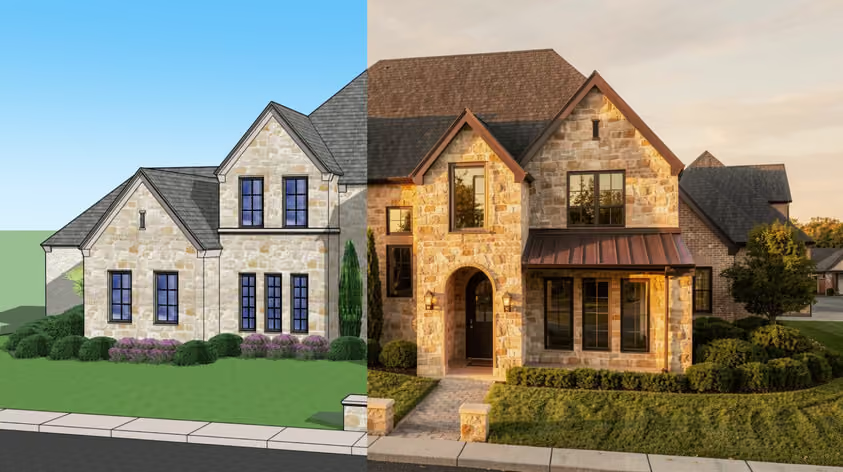
Once these shortcuts are second nature, the render becomes the next bottleneck. MyArchitectAI turns any Vectorworks view into a photoreal render in seconds — one of the fastest Vectorworks rendering options out there. No extra software, no GPU upgrade.
| Action | Windows | Mac |
|---|---|---|
| Top/Plan or Rotated Top/PlanThe default plan view. | Ctrl + 5 | Cmd + 5 |
| Top (3D)Numeric keypad only. Vectorworks distinguishes keypad numbers from the number row. | 5 (Num) | 5 (Num) |
| FrontNumeric keypad. Useful for elevation work. | 2 (Num) | 2 (Num) |
| BackNumeric keypad. | 8 (Num) | 8 (Num) |
| LeftNumeric keypad. | 4 (Num) | 4 (Num) |
| RightNumeric keypad. | 6 (Num) | 6 (Num) |
| Left IsometricNumeric keypad. | 1 (Num) | 1 (Num) |
| Right IsometricNumeric keypad. | 3 (Num) | 3 (Num) |
| Left Rear IsometricNumeric keypad. | 7 (Num) | 7 (Num) |
| Right Rear IsometricNumeric keypad. | 9 (Num) | 9 (Num) |
| Top/Plan (numpad)Equivalent to Ctrl+5. | 0 (Num) | 0 (Num) |
| Unrotate 3D ObjectsReset rotation of selected 3D objects. | Ctrl + Shift + 0 | Cmd + Shift + 0 |
| Action | Windows | Mac |
|---|---|---|
| NewNew blank document. | Ctrl + N | Cmd + N |
| OpenOpen an existing .vwx file. | Ctrl + O | Cmd + O |
| SaveStandard save. | Ctrl + S | Cmd + S |
| Save AsSave a copy. | Ctrl + Shift + S | Cmd + Shift + S |
| PrintOpen the print dialog. | Ctrl + P | Cmd + P |
| Quit VectorworksClose the application. | Alt+F4 or Ctrl+Q | Cmd + Q |
| UndoStep backward through history. | Ctrl + Z | Cmd + Z |
| RedoStep forward. | Ctrl + Y | Cmd + Y |
| Repeat last commandRe-run the most recent command. | R | R |
| CutStandard cut. | Ctrl + X | Cmd + X |
| CopyStandard copy. | Ctrl + C | Cmd + C |
| PasteStandard paste. | Ctrl + V | Cmd + V |
| Paste in PlacePaste at the source coordinates. | Ctrl + Alt + V | Cmd + Option + V |
| DuplicateQuick duplicate offset by a small amount. | Ctrl + D | Cmd + D |
| Duplicate ArrayLinear/polar/grid array dialog. | Ctrl + Shift + Alt + D | Cmd + Shift + Option + D |
| Edit Current WorkspaceOpens the Workspace Editor where shortcuts live. | Ctrl + Shift + Alt + W | Cmd + Shift + Option + W |
Eight defaults that beginners miss but seasoned drafters use every session. None of them appear on the standard menu items, which is why they fly under the radar.
| Key | Action | Why it matters |
|---|---|---|
| Y | Toggle SmartCursor Cues | Hides or shows the on-screen snap hints. Useful when the cues obscure your work. |
| B | X-ray Select Mode | Lets you click through to objects hidden behind others. Toggles on and off. |
| Hold Z | Snap Loupe | A magnifier overlay at the cursor. The fastest way to pick the exact snap point in dense geometry. |
| T | Set Smart Point / Edge Snap Lock | Lock an inferred edge or point so it stays as a reference while you draw. |
| G | Set Datum | Drops a temporary reference point for relative coordinate input. |
| R | Repeat Last Command | Re-runs whatever you just did. Faster than digging through the menu. |
| CC | Increase Zoom 2x (chord) | Press C twice quickly. Mirrors XX for deselect all. |
| Backspace / Delete | Undo last clicked point | Works mid-draw on walls, polylines, and path objects. Saves you from cancelling the whole operation. |
Vectorworks bundles tools, menus, and shortcuts into named workspaces. Editing a shortcut means editing the active workspace. The file lives outside the document, so your shortcut changes follow you between projects.
.vww files in the user folder. Copy that file to another machine to carry your setup across installations.A handful of shortcuts cannot be modified in the Workspace Editor. Numeric keypad view switches (1 Num through 9 Num), mouse double-clicks, and OS-reserved combinations are locked. Arrow-key behavior is configured in Vectorworks Preferences → Edit tab, not the Workspace Editor.
Looking for the Vectorworks shortcuts Mac users rely on? The Mac column in every table above is already populated. Most Vectorworks shortcuts only swap Ctrl for Cmd between platforms. A handful are genuinely different chords. Memorize these if you ever move between a Mac and a PC for the same project:
| Action | Windows | Mac | Note |
|---|---|---|---|
| Connect/Combine | ; (semicolon) | Option + L | One of the rare cases where Win and Mac shortcuts differ. |
| Clip | Shift + N | Option + C | Another Win/Mac divergence — keep this one in mind. |
| Attribute Mapping | Shift + A | Option + A | Map texture onto an object surface. Divergent shortcut. |
| Window | Shift + D | Option + Shift + W | Another Win/Mac divergence — Mac uses a longer chord. |
| Layer Options - Show/Snap/Modify Others | Ctrl + Alt + 8 | Cmd + Option + 9 | Full access to inactive layers. Note the Mac shortcut differs. |
| Quit Vectorworks | Alt+F4 or Ctrl+Q | Cmd + Q | Close the application. |
.vww file in your Vectorworks user folder and copy it somewhere safe. Reinstalls and version upgrades wipe it otherwise.