Below is every default Revit keyboard shortcut, grouped by workflow.
Every tool takes two letters: DI for an aligned dimension, MV to move, VG for visibility/graphics. The second letter fires the command (no Enter, no menus).
After the first week of muscle memory, your modeling speed roughly doubles.
Only want the essentials? Skip to the top 10 most-used. Want to make them yours? See recommended custom keyboard shortcuts further down.
We recommend downloading the full Revit keyboard shortcuts list as a printable PDF:
If you only memorize ten Revit shortcuts, make it these ten. They cover most of a typical modeling session.
These are Revit's defaults. Most are 2-letter sequences that fire the moment you type the second letter. A handful of useful commands have no default at all. The recommended custom keyboard shortcuts further down fill those gaps.
| Action | Shortcut |
|---|---|
| Zoom In Region Drag a window to zoom into | ZR |
| Zoom Out (2x) Steps zoom outward | ZO |
| Zoom to Fit Frame entire view | ZF |
| Zoom All to Fit Fit all open views to their windows | ZA |
| Previous Pan/Zoom Step back through navigation history | ZP |
| Zoom Sheet Size Display at sheet print size | ZS |
| Default 3D View Recommend customizing to 33 (no default) | — |
| Window Tile Tile open views | WT |
| Window Cascade Cascade open views | WC |
| Tab Views Cycle through open views | TW |
| Close Hidden Windows Close all but the active window | XX |
| Action | Shortcut |
|---|---|
| Selection mode (Modify) Default cursor / exit current tool | MD |
| Cycle through overlapping Hover and press TAB to cycle picks | TAB |
| Add to selection Adds individual elements | Hold Ctrl + click |
| Remove from selection Removes individual elements | Hold Shift + click |
| Select All Instances in View Right-click element > Select All Instances > Visible in View | SA |
| Filter selection Opens the Filter dialog | FT |
| Activate (in family editor) Activates a parameter or component | AC |
| Action | Shortcut |
|---|---|
| One click rendering Render any Revit design in 10 seconds. No installs needed. | MyArchitectAI → |
| Action | Shortcut |
|---|---|
| Move Move selection by distance or anchor | MV |
| Copy Or use CC (older alias) | CO |
| Rotate Pick rotation center then angle | RO |
| Mirror — Pick Axis Reflect across an existing line | MM |
| Mirror — Draw Axis Reflect across a drawn line | DM |
| Array Linear or radial duplication | AR |
| Align Snap one element to another's reference | AL |
| Trim/Extend to Corner Two-pick trim to corner | TR |
| Trim/Extend Single Element Same key — context-sensitive | TR (single) |
| Trim/Extend Multiple Elements Same key — context-sensitive | TR (multi) |
| Split Element Cut at a clicked point | SL |
| Offset Offset by typed value or graphical pick | OF |
| Match Type Properties Copy a type from source to targets | MA |
| Pin position Lock element in place | PN |
| Unpin position Release a pin | UP |
| Group Wrap selection in a model group | GP |
| Paint material Apply a material to a face | PT |
| Linework Override an edge's line style in a view | LW |
| Delete Removes selection | DE |
| Cut Geometry Modify > Cut > Cut Geometry | CG |
| Unjoin Geometry Modify > Cut > Unjoin Geometry | UG |
| Action | Shortcut |
|---|---|
| Aligned Dimension Most-used dimension | DI |
| Detail Line View-specific drafting line | DL |
| Spot Elevation Place elevation marker | EL |
| Spot Coordinate Place coordinate marker | EC |
| Spot Slope Annotate roof/floor slope | KS |
| Text Place text note | TX |
| Tag by Category Place a tag on selected element | TG |
| Tag All Not Tagged Auto-tag every untagged element | TA |
| Symbol Insert annotation symbol | SY |
| Action | Shortcut |
|---|---|
| Wall Place wall | WA |
| Door Place door | DR |
| Window Place window | WN |
| Column (architectural) Place an architectural column | CL |
| Floor — Architectural Toolbar only (no default) | — |
| Roof by Footprint Place roof from sketched footprint | RF |
| Stair (by component) Toolbar only (no default) | — |
| Place Component Insert a loaded family instance | CM |
| Reference Plane Place a reference plane | RP |
| Grid Place a grid line | GR |
| Level Place a level | LL |
| Model Line Toolbar only (no default) | — |
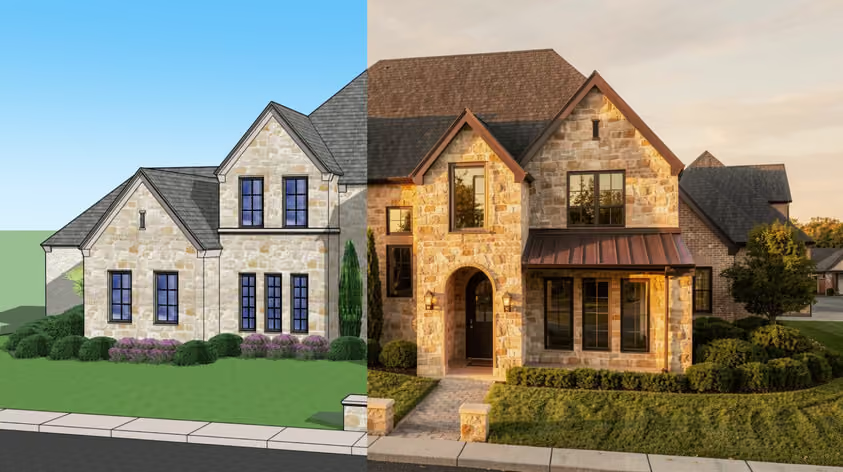
Once these shortcuts are second nature, the render becomes the next bottleneck. MyArchitectAI turns any Revit view into a photoreal render in seconds — no extra software, no GPU upgrade.
| Action | Shortcut |
|---|---|
| Duct Place a duct (Mechanical) | DT |
| Pipe Place a pipe (Plumbing/MEP) | PI |
| Cable Tray Place a cable tray | CT |
| Conduit Place a conduit | CN |
| Electrical Equipment Place electrical equipment | EE |
| Lighting Fixture Place a lighting fixture | LF |
| Mechanical Equipment Place mechanical equipment | ME |
| Duct Placeholder Place a duct placeholder (sketchy duct routing) | DP |
| Pipe Placeholder Place a pipe placeholder | PP |
| Pipe Accessory Place pipe accessory (valve etc.) | PA |
| Sprinkler Place a sprinkler head | SK |
| Air Terminal Place an air terminal (diffuser/grille) | AT |
| Action | Shortcut |
|---|---|
| Visibility/Graphics Or VV — opens the V/G dialog | VG |
| Visibility Toggle Alias for VG | VV |
| Hide element in view Right-click > Hide in View > Element shortcut | EH |
| Hide category in view Hide all of a category in current view | VH |
| Reveal Hidden Elements Toggle the lightbulb visibility mode | RH |
| Render Open the Render dialog | RR |
| Thin Lines Toggle thin-line preview display | TL |
| View Properties Toolbar / right-click > View Properties (no default) | — |
| Action | Shortcut |
|---|---|
| New New Revit project | Ctrl + N |
| Open Open file | Ctrl + O |
| Save Save current model | Ctrl + S |
| Save As Save with new name | Ctrl + Shift + S |
| Print Print current view or sheet | Ctrl + P |
| Undo Step back through changes | Ctrl + Z |
| Redo Re-apply undone change | Ctrl + Y |
| Cut Cut selection | Ctrl + X |
| Copy Copy selection | Ctrl + C |
| Paste Paste at cursor | Ctrl + V |
| Paste Aligned to Current View Recommend assigning — no default | Ctrl + Shift + V (assign) |
| Keyboard Shortcuts (open dialog) Or View > User Interface > Keyboard Shortcuts | KS (or Ctrl+Shift+K) |
| Properties Palette Open the properties panel | Ctrl + 1 |
Some useful Revit hotkeys have no default shortcut. A few defaults are also slow to type. Doubled-letter combos (AA, MM, DD, JJ, TT) solve both problems — symmetric keys are easier to fire without thinking. See how to customize below.
| Key | Action | Why add it |
|---|---|---|
| AA | Align (reassigned from AL) | Same-letter combos are faster than reaching across the keyboard. AL → AA is the most common power-user reassignment. |
| MM | Mirror — Pick Axis | Already default, but worth confirming. Faster than DM (Draw Axis) when you have a reference line. |
| DD | Aligned Dimension (reassigned from DI) | Doubled letters are easier to fire than DI once you're dimensioning all day. |
| JJ | Join Geometry | No default. Cleans up the visual mess at structural intersections. |
| TT | Type Properties | No default. Skips the right-click > Edit Type roundtrip. |
| 33 | Default 3D View | No default. Two threes return you to the default isometric instantly. |
| Ctrl + E | Export Image | Saves the active view as PNG without leaving the model. |
| Ctrl + J | Duplicate View with Detailing | Right-click > Duplicate View > Duplicate with Detailing is the long way. |
.xml file. Import on another machine to keep your setup in sync.Revit shortcuts fire on the final keystroke — no Enter. When assigning, avoid prefixes that conflict with existing single-letter commands.
Press Ctrl + Shift + K to open the Keyboard Shortcuts dialog (or View tab → Windows panel → User Interface → Keyboard Shortcuts). Find the command in the filter box, click the *Press new keys* field, type your combination, and click *Assign*. Revit flags any conflicts with existing commands.
Default 3D View doesn't have a default shortcut. Most Revit pros assign 33 to it. To set it: open Keyboard Shortcuts (Ctrl+Shift+K), search "Default 3D View," and type 33 in the new-keys field.
Yes. In the Keyboard Shortcuts dialog, click Export to save a .xml file. On the other machine, open the same dialog and click Import. Easiest way to keep your setup consistent across machines.