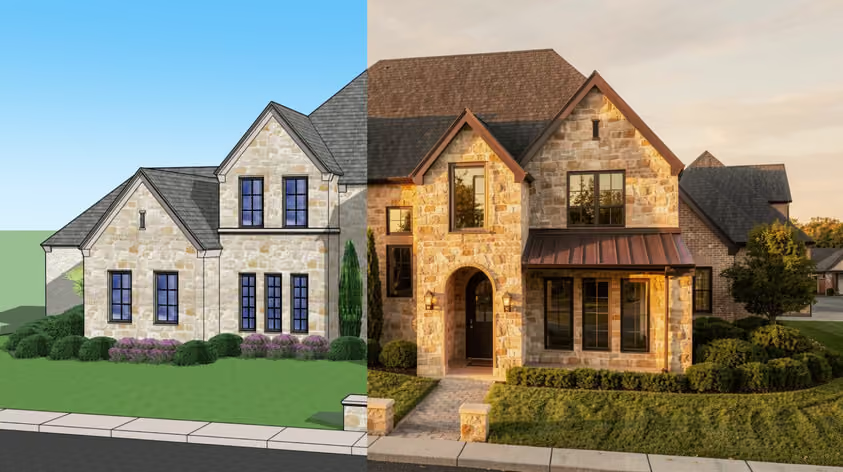
Running Lumion in 2026 takes serious hardware. Its system requirements demand powerful components to handle real-time rendering, and if your setup falls short, expect crashes, lag, and painfully slow render times.
The truth is, Lumion runs smoothly only on workstations with a high-end GPU, plenty of memory, and a solid internet connection.
In this guide, we’ll break down Lumion's exact hardware requirements, explain why they matter, and show a few lightweight alternatives like MyArchitectAI, which run entirely in the cloud and doesn’t depend on your hardware.
What you need to know is that the minimum specs exist only to run the software – they don’t guarantee a satisfying user experience. Nevertheless, that also doesn’t mean you must get the most expensive equipment—high-end Lumion system requirements are for firms doing complex commercial projects.
Understanding these tiers helps you avoid the frustration of buying hardware that either can't handle or isn’t suited for your specific tasks:
This configuration will potentially let you render small parks or single residential buildings using the most basic models and textures, but won’t smoothly support Lumion Pro's high-end features.
With this setup, you can run Lumion smoothly when visualizing a small park or part of a city made with OpenStreetMap or other simple models, a large home with detailed interiors made up of several models and HD textures, or a single commercial building with landscaping.
You’ll need these specs for rendering a detailed city, airport, or stadium, a multi-floor building with detailed interiors containing numerous models and HD textures, or complex landscapes with fine-detail trees and 3D grass.
Your graphics card determines everything in Lumion. While working on building the context around your project, the graphics card ensures a smooth and enjoyable frame rate (measured in FPS). When rendering, the GPU streamlines the rendering process.
Lumion needs a dedicated graphics card with as many PassMark points as possible. The PassMark score directly correlates to your rendering speed and real-time performance.
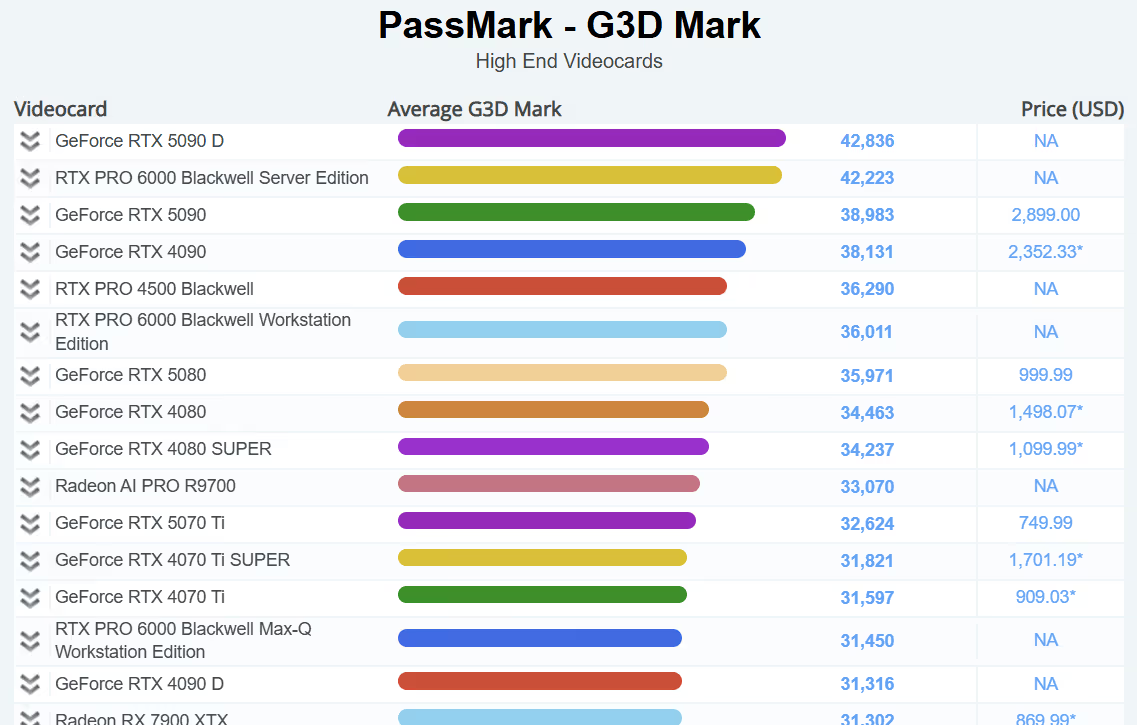
Critical GPU memory requirements:
Ray tracing support (Lumion 2024/2025): To use the Ray Tracing feature, a graphics card that supports this technology is a must. Supported cards include:
While the processor is not used much while rendering still images and videos, it's heavily utilized for compressing frames after they have been rendered. So you still need adequate processing power.
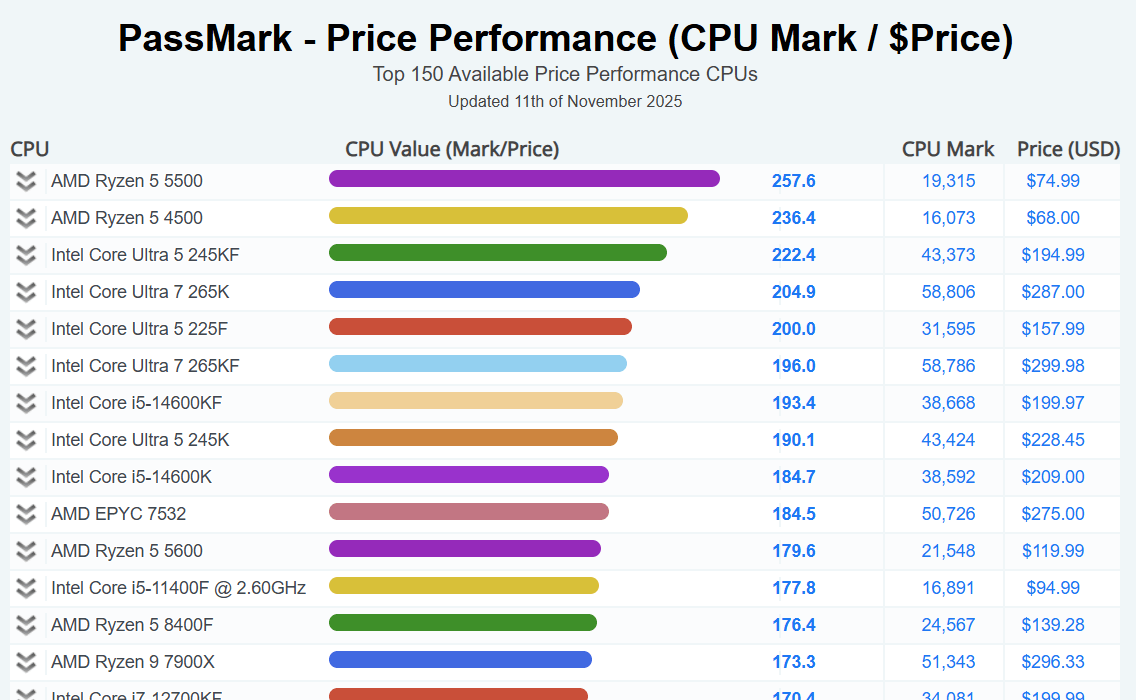
Single-thread performance matters: Lumion relies on single-thread CPU performance. You need:
Examples of suitable CPUs:
System memory (RAM):
While Lumion primarily relies on your GPU to render scenes in real-time, your RAM plays a crucial role when loading models, textures, and projects into memory.
Storage requirements:
Lumion was created exclusively for Windows, focusing on DirectX and CUDA technologies that Mac's Metal API doesn't support. While macOS is not officially supported, it is possible to run Lumion Pro on a Mac. However, this setup significantly underperforms compared to dedicated Windows machines, so we don't recommend it.
Windows requirements:
Recommended specs for graphics drivers:
NOTE: While exact minimum GPU driver version numbers are not always published for each brand, aim for recent versions released after the GPU launch and supported by your vendor—check the Lumion support site for any documented compatibility issues.
The power supply is a very important component. Even if you meet the proper Lumion system requirements, an inferior quality power supply may cause your PC to reboot. This often happens if it cannot cope with sudden spikes in demand while you're using Lumion Pro.
Requirements:
You can use several hardware optimization strategies to make Lumion run more efficiently.
These optimizations work because Lumion calculates everything in real-time. Every polygon, texture, and effect demands GPU resources. Hence, by reducing complexity where it won't affect your final render quality, you can achieve smooth performance even on mid-range hardware.
Here’s how to run Lumion smoothly.
Once GPU usage hits 90% or more, Windows may start using your system RAM to compensate, which can significantly slow down performance and render times. To prevent this, focus on optimizing the following:
Use the frame rate as your guide:
For more tips on getting the most out of Lumion, read our guide on the best settings for realism.
Cloud rendering eliminates the fundamental problem with Lumion system requirements – you're no longer limited by your local hardware. Instead of spending thousands on GPUs (that soon become obsolete), you're accessing enterprise-grade rendering power that's constantly upgraded. You pay only for what you use, with no maintenance, no compatibility issues, and instant scalability for any project size.
This is what AI renderers like MyArchitectAI offer.
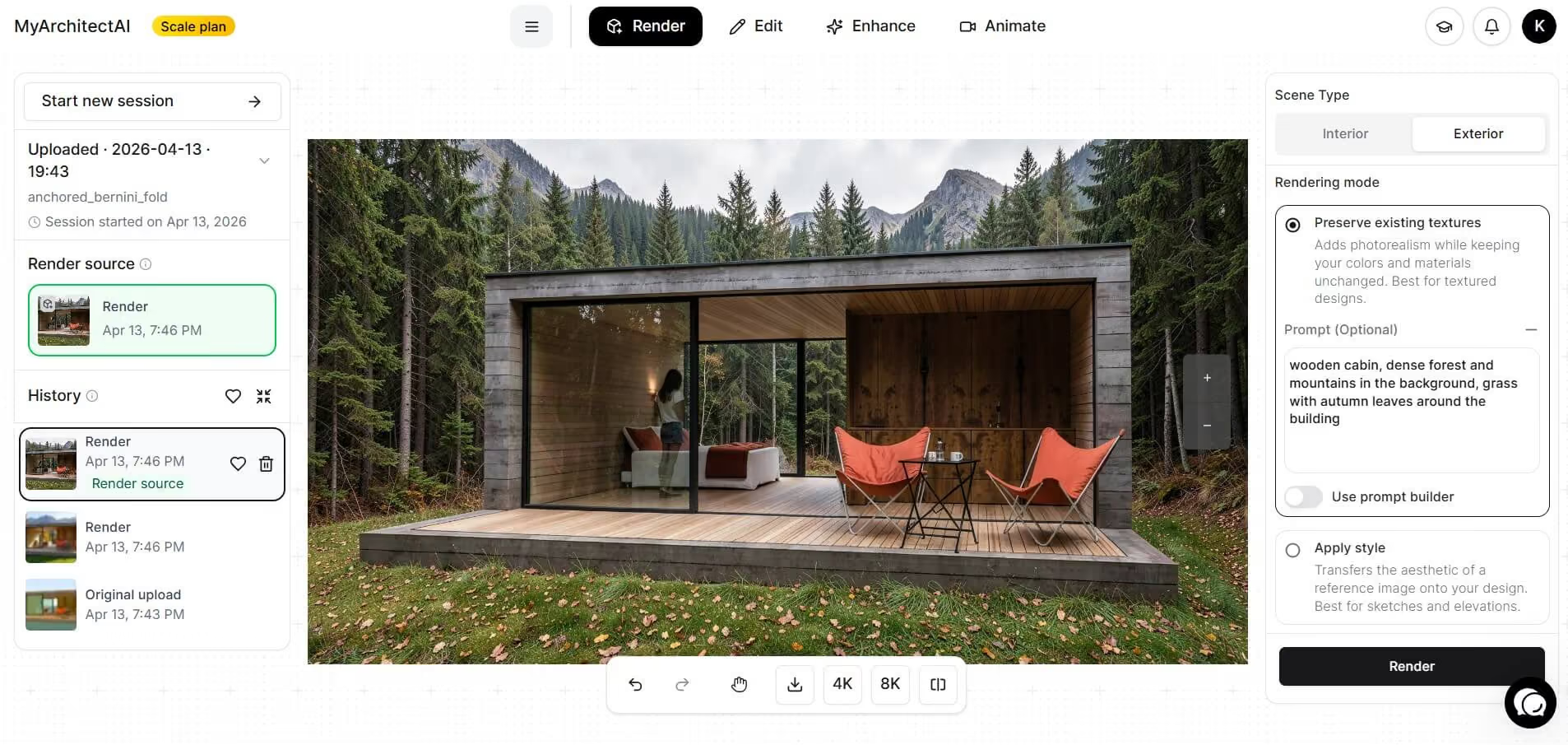
Here are the main advantages MyArchitectAI offers over Lumion:
Lumion’s system requirements keep climbing. The RTX 3060 that's "recommended" today will be minimum tomorrow. With cloud-based renderers like MyArchitectAI, you're always running on the latest cloud infrastructure – no upgrades needed, no compatibility issues. Just fast, beautiful renders from any device with a browser.
No. Even for basic projects, Lumion requires a minimum of 6 GB of RAM. A 4 GB card will severely limit your capabilities and cause frequent crashes with anything beyond the simplest scenes.
Absolutely not. Lumion’s system requirements demand a dedicated GPU to function—this is one of the most GPU-intensive rendering programs available, meaning your graphics card is responsible for almost everything. Integrated-only graphics cards, such as Intel HD or AMD onboard graphics chips, are not supported.
Unlike traditional rendering software that relies heavily on the CPU, Lumion is built to take advantage of GPU acceleration. While the CPU handles UI, model calculations, and frame compression, the GPU does the heavy lifting for all rendering tasks. You need both, but the GPU is far more critical.