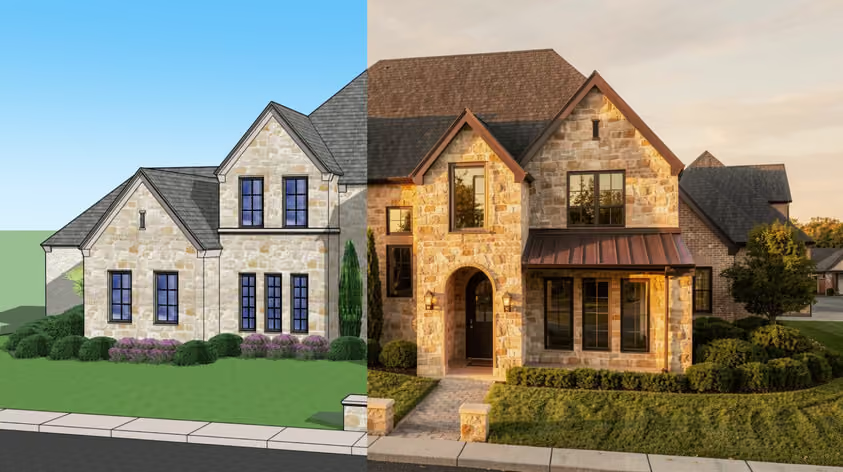
Enscape is one of the most popular real-time rendering plugins for architects and designers. It works directly inside your CAD software, giving you realistic visualizations without back-and-forth between applications.
But here's the trade-off: Enscape system requirements are GPU-heavy, and meeting them means investing in dedicated graphics hardware. If your setup falls short, you'll run into crashes and/or poor frame rates. In the worst cases, software won't even launch.
.jpeg)
In this guide, we'll break down exactly what Enscape needs to run smoothly on Windows and Mac, explain how each component affects performance, and show you a lightweight alternative that eliminates hardware requirements entirely.
Enscape uses ray tracing for real-time rendering, and almost all calculations are handled by your graphics card. Your GPU is doing the heavy lifting, while the CPU plays a supporting role at best.
Here's what you need to know before diving deeper into Enscape system requirements:
Let's break down the specific tiers.
These specs will technically let you run Enscape, but don't expect a smooth experience on anything beyond simple residential projects.
For professional work—detailed residential projects, medium-sized commercial buildings, or interior visualizations with realistic materials—these are the Enscape recommended setups you should aim for.
This setup lets you run Enscape at maximum quality and achieve fully photorealistic results without performance issues.
If you're planning to use Enscape's virtual reality features for client walkthroughs or design reviews, the Enscape hardware requirements jump significantly.
Rendering on Mac computers is tricky (or impossible) with many renderers. However, if you’re on Apple Silicon, you can run Enscape on a Mac.
For larger projects with complex geometry and high-resolution textures:
Important note: On macOS, Enscape scales performance through unified memory bandwidth and GPU core count. Hardware ray tracing remains exclusive to RTX-class cards on Windows.
In short, the Enscape system requirements for Mac are fairly straightforward—if you have an M-series chip, you're in. If you're still on Intel, you'll need to look at Windows or a cloud rendering solution.
Your graphics card is the single most important component for Enscape. Understanding how and why will help you make smart upgrade decisions.
Enscape operates like a video game engine. It renders your entire scene in real-time, calculating lighting, reflections, and materials on the fly. The more powerful your GPU, the smoother your experience, especially when you go for higher resolutions and quality settings.
Both manufacturers work with Enscape, but there's a catch. Hardware ray tracing—which significantly improves lighting and shadow quality—is only fully available on NVIDIA RTX cards. AMD cards can run Enscape well, but they won't deliver the same ray-traced realism.
NVIDIA advantages:
AMD advantages:
Your graphics card needs at least 4GB of VRAM to meet the minimum Enscape system requirements. In theory. But here's the reality: 4GB will barely get you through simple scenes. And the Enscape graphics card requirements for real work are much higher.
When your scene exceeds available VRAM, performance tanks. You'll notice stuttering, slow navigation, and render failures. Plus, unlike RAM, you can't simply add more VRAM; you need a whole new graphics card.
Entry-level (simple residential, basic materials):
Mid-range (detailed residential, small commercial):
Professional (complex commercial, detailed interiors):
High-end (VR, masterplans, maximum quality):
While GPU dominates Enscape performance, other components still matter.
Enscape itself doesn't heavily utilize the CPU—it's primarily single-threaded and relies on the GPU for rendering. However, your processor still handles:
A sluggish CPU can create a bottleneck that holds back your GPU. For balanced performance, aim for:
Core count doesn't matter much for Enscape specifically, but it helps if you're running other applications simultaneously.
Enscape follows standard RAM guidelines for professional rendering software:
While Enscape doesn't consume massive amounts of RAM on its own, remember that you're also running your CAD software, asset libraries, and potentially other applications. 32GB gives you comfortable headroom.
Storage won't directly affect Enscape system requirements in terms of rendering performance, but it impacts your workflow:
Fast storage matters most when loading large models, accessing the Asset Library, and saving projects.
Enscape's Asset Library loads content over the internet. A fast, stable connection—preferably wired rather than Wi-Fi—significantly speeds up asset loading times.
Enscape 3.4 and later provide a benchmark scene to test your workstation's performance.
Open Enscape, go to Help, Run Benchmark, and let the scene render. The final score is a quick proxy for whether your GPU and VRAM can handle typical Archicad, Revit, or SketchUp workloads:
Enscape works as a plugin for your existing design software. Here's what's currently supported:
Note that Revit isn't available for Mac (without workarounds), so Mac users won't have access to the Enscape Revit plugin regardless of Enscape system requirements being met.
Your graphics card doesn't support Vulkan 1.1 or has less than 4GB VRAM. The only solution is upgrading your GPU.
Check your VRAM usage. If it's hitting 90-100%, your scenes are too complex for your hardware. Options:
DLSS and hardware-accelerated ray tracing aren't supported on:
For full RTX features, you need an NVIDIA RTX 20/30/40/50 series card.
Often caused by VRAM limits or driver issues. Try:
Enscape is GPU-bound and uses NVIDIA's DXR pipeline for ray tracing. That rules out integrated graphics and AMD Radeon-only configs. Here are some solid laptop choices based on your budget.
Works for SketchUp or Revit LT, and for single-building Archicad scenes. Will choke on masterplans or heavy VR.
Probably where most architects should land. 8 GB VRAM handles medium-complexity interiors without hitting Enscape's texture-streaming ceiling. Good for real-time Revit work.
For studios running commercial projects, VR walkthroughs, or large 4K stills. 16 GB VRAM is where heavy Archicad models with full material libraries stop stuttering.
MacBooks: Apple Silicon (M1 through M4) runs Enscape through the SketchUp plugin. The Windows host-app list is broader, so if you need Enscape for Revit or Archicad, get a Windows laptop.
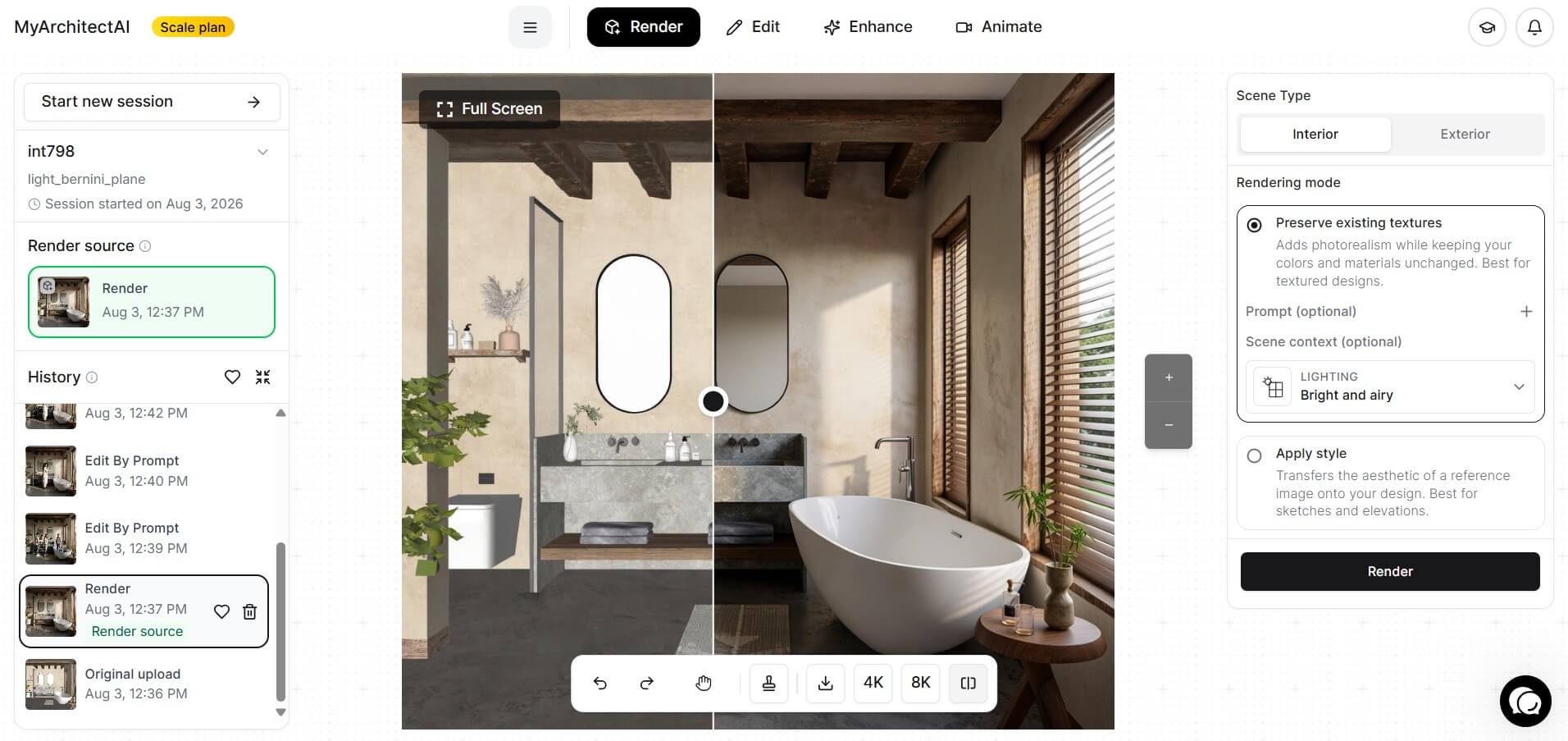
Here's where things get interesting: cloud-based AI renderers like MyArchitectAI bypass Enscape’s demanding hardware requirements.
Instead of investing thousands in GPU upgrades, you render directly in your browser. The processing happens on cloud servers, so your local hardware doesn't matter. If you use Enscape in your workflow, see how AI tools pair with Enscape to speed up iteration without hardware upgrades. The numbers say it all—here’s how MyArchitectAI compares to Enscape:
| Factor | Enscape | MyArchitectAI |
|---|---|---|
| GPU Required | 4GB+ VRAM dedicated GPU | None—runs in browser |
| RAM | 16-32GB | Works on any device |
| Operating System | Windows 10+, macOS (Apple Silicon) | Any browser (Windows, Mac, iPad, Chromebook) |
| Mac Support | Apple Silicon only | Full support |
| Rendering Time | Depends on hardware | 10-30 seconds |
| Price | $574.80+/year + hardware costs | $29/month |
| Installation | Required on each machine | None—instant access |
| Hardware Upgrades | Every 2-4 years | Never |
On top of that, MyArchitectAI workflow is also as straightforward as it gets:
Enscape system requirements center on one thing: your graphics card. If you've got an NVIDIA RTX card with 8GB+ VRAM, 32GB RAM, and a fast SSD, you'll have a smooth experience. Meet those Enscape recommended specs, and you're set for professional work.
For Mac users, Apple Silicon (M1/M2/M3/M4) handles Enscape well, but Intel Macs are completely unsupported—no workarounds available.
If keeping up with Enscape hardware requirements sounds expensive or impractical for your workflow, opt for cloud-based AI rendering tools as a compelling alternative. No GPU required, no compatibility issues, just fast results from any device.
Enscape is heavily GPU-intensive. Almost all rendering calculations happen on your graphics card (not your CPU). Your processor mainly handles scene loading and running the host CAD application. That's why meeting Enscape graphics card requirements matters so much—a fast CPU won't compensate for a weak GPU. For best results, pair a capable GPU (8GB+ VRAM) with a CPU that has solid single-core performance.
Yes, absolutely. Enscape requires a dedicated graphics card with dedicated VRAM. Integrated graphics (like Intel UHD or shared memory solutions) don't meet Enscape system requirements for full functionality. You need at least 4GB of dedicated VRAM, but 8GB or more is recommended for professional work. Without a capable GPU, Enscape either won't launch or will perform so poorly it's unusable.
Yes, but only on Apple Silicon Macs (M1, M2, M3, M4 chips). Intel-based Macs are not supported at all—neither through native macOS nor through Boot Camp or Parallels. If you have a MacBook Pro, iMac, or Mac Studio from 2020 or later with an M-series chip, you can run Enscape. Older Intel Macs are utterly incompatible with current Enscape Mac requirements, meaning you'll need to upgrade hardware or look at cloud-based alternatives.