Animations let you turn a single image into a short video or create a smooth transition between two images.
You can use a motion preset to get started quickly, or write your own prompt for even more control.
You can animate all sorts of images, both photorealistic and conceptual, and even turn one into another. When using photorealistic images as input, make sure they're sharp and in high resolution.
Setting up your animation
Start frame
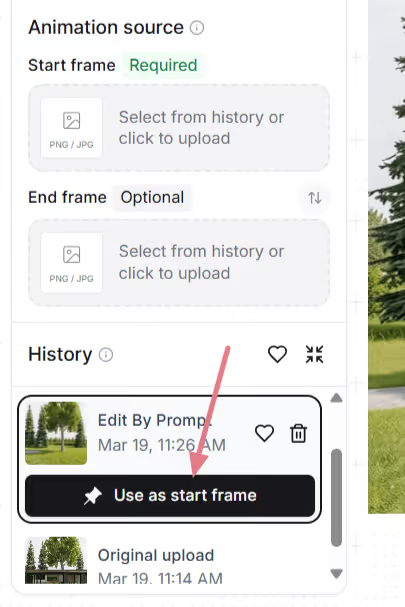
The start frame is where the animation begins and is always required. When animating from an existing session, you can pick the start frame from your session history by selecting a history item and clicking "Use as start frame."
End frame (optional)
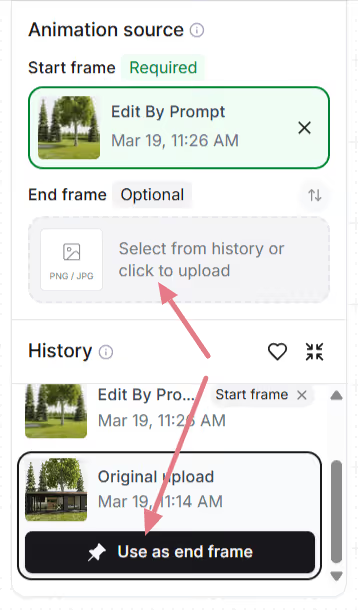
Only add an end frame if you have a matching image for the animation. This gives you more control over how the animation ends.
You can either use one of the images from your session history or upload a new one.
When using both start and end frames:
Make sure both images are of the same dimensions.
Keep the framing change gradual. A slight angle shift or a small zoom works best.
Dramatic changes between frames (e.g., going from an interior close-up to a wide exterior) might produce unexpected results.
If using a custom prompt, describe what should happen in between, e.g., "camera moves forward through the hallway into the bedroom" or "watercolor drawing slowly turns into a photorealistic image"
Tip: use Edit by Prompt to quickly create a matching frame.
Motion presets
After setting your frames, select a motion preset. This defines either how the camera moves through the animation or how the start frame transitions into the end frame.
You're not limited to the presets, though. Open "Advanced settings" to see and customize the prompt each preset uses, or remove the prompt and write your own from scratch.
How prompts work
Your uploaded image already defines the scene: the room, the lighting, the materials, everything visual. The prompt only needs to describe how the camera moves and how the environment behaves.
A good animation prompt has up to two parts:
[Camera movement] + [Ambient motion]
You don't need both every time. Camera movement alone is often enough. For static camera shots, describing the ambience is all you need.
Camera movement
Below are the common camera motions you can use in your custom prompts.
Direction
What to Write
Move forward
dolly forward, push in, move forward through the space
Move backward
dolly back, pull back, camera moves backward
Pan sideways
pan left, pan right, the camera pans slowly to the right
Orbit
orbit left, orbit right, the camera slowly orbits around
Zoom
zoom in slowly, camera zooms out
Tilt
tilt up, tilt down, the camera tilts upward
Aerial / descend
aerial shot, the camera descends slowly
Pro tip: combine these with speed modifiers like slowly, gently, or gradually for smooth flythroughs. Use quickly or fast only if you want dramatic speed.
Ambient motion
Scene Type
What to Add to Your Prompt
Exteriors
leaves sway gently in the wind, clouds drift slowly
Windows / light
soft light shifts through the windows, curtains move slightly
Water features
water ripples gently, the pool surface shimmers
Terraces
a gentle breeze moves the tablecloth
Fireplaces
fire flickers softly in the fireplace
Prompt examples
Use these prompts as starting points. Copy one, swap in your scene details, and adjust the camera direction.
Interiors
The camera slowly orbits left around the dining table, candlelight flickers softly
Slow zoom in on the kitchen countertop, warm light gently shifts across the surface
Gentle dolly forward, fire flickers in the fireplace, warm light softly shifts on the walls
Exteriors
The camera slowly orbits right around the building, soft clouds drift in the sky
The camera dollies forward along the garden path, leaves rustle gently in the breeze
The camera slowly rises from ground level, revealing the full elevation and mountains in the background
Landscapes
The camera slowly pans right across the garden, leaves sway gently in the breeze, day turns into night
Fixed camera, rain falls steadily on the terrace, water pools ripple gently
The camera pans left, gradually revealing the terrace and the landscape beyond
With people
Note: human movement is less predictable than camera-only or environmental prompts. For best results, add people to the scene before animating your renders.
A man in a suit walks forward through the office corridor, the camera follows from behind
A woman leans on the balcony railing looking out at the view, her hair moves gently in the breeze
Two people sit at the dining table talking, gesturing naturally, the camera slowly pans right
Get creative
There are no limits to what you can create. Write a custom prompt describing any kind of animation you need.
Fixed camera. A closed carton box drops on the floor and explodes. The furniture smoothly comes out of the box and furnishes the room. (start and end frame needed)
Fixed camera. A crane slowly lowers the modular house to the ground. (start and end frame needed)
Thick, vivid oil paint erupts from the center and rushes outward in every direction, flooding the sketch with rich color. (use a black and white input)
Animations best practices
Describe motion, not the scene
Your image already shows the scene. Don't repeat what's visible.
Bad: Modern living room with white walls, wooden floor, large windows with natural light, the camera pans right
Good: The camera slowly pans right, revealing the ocean view behind the balcony windows
Use degree words for motion intensity
The AI can't infer speed or intensity from your image alone. Always mention it in your prompts.
Bad: The trees move
Good: The trees sway gently in the wind
Words like slowly, gently, quickly, strongly, and slightly make a big difference.
Don't use negative prompts
Saying what you don't want won't work. Always describe what you do want.
Bad: No camera shake, don't zoom in
Good: Steady, locked camera with no movement or The camera pans smoothly to the left
Keep it short
One to two sentences is the sweet spot. Focus on describing the camera motion and ambience.
Notifications
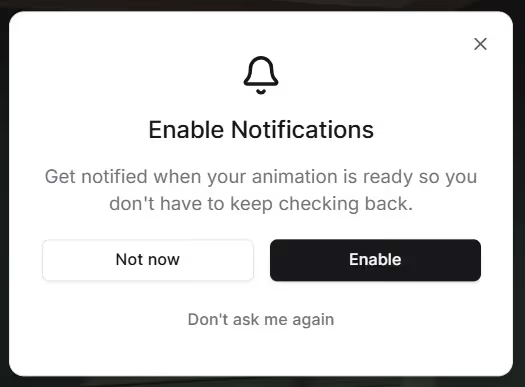
Animations usually take about 90-120 seconds to generate. You can browse away or work on another session while it's processing. To get notified when the animation is ready, click 'enable' to get a sound alert.