KeyShot is one of the most widely used rendering tools among product designers and engineers. It delivers photorealistic results with minimal setup time, which is a big part of its appeal. But to get the most out of it, your hardware needs to keep up.
This guide covers the KeyShot system requirements for Windows and Mac, what the official specs leave out, and what actually matters based on real workloads.
Here's what Luxion (KeyShot's developer) lists as the minimum to launch the software.
These KeyShot minimum requirements will technically get the app running, but don't expect a smooth experience with complex models.
In most cases, the minimum specs are enough for doing basic experimentation. For professional work with detailed CAD assemblies and high-resolution output, you'll need considerably more power across all components.
Luxion originally built this tool as a CPU renderer, and that heritage still defines the KeyShot system requirements today. The software uses every available CPU core, and is also one of the few tools whose performance scales almost linearly with core count.
In practice, an 8-core processor can handle simple product shots and viewport navigation. But once your scenes involve high-poly models stacked with complex materials at production resolution, the core count gap takes its toll. Users find this particularly irritating during final renders where every extra minute of wait time counts.
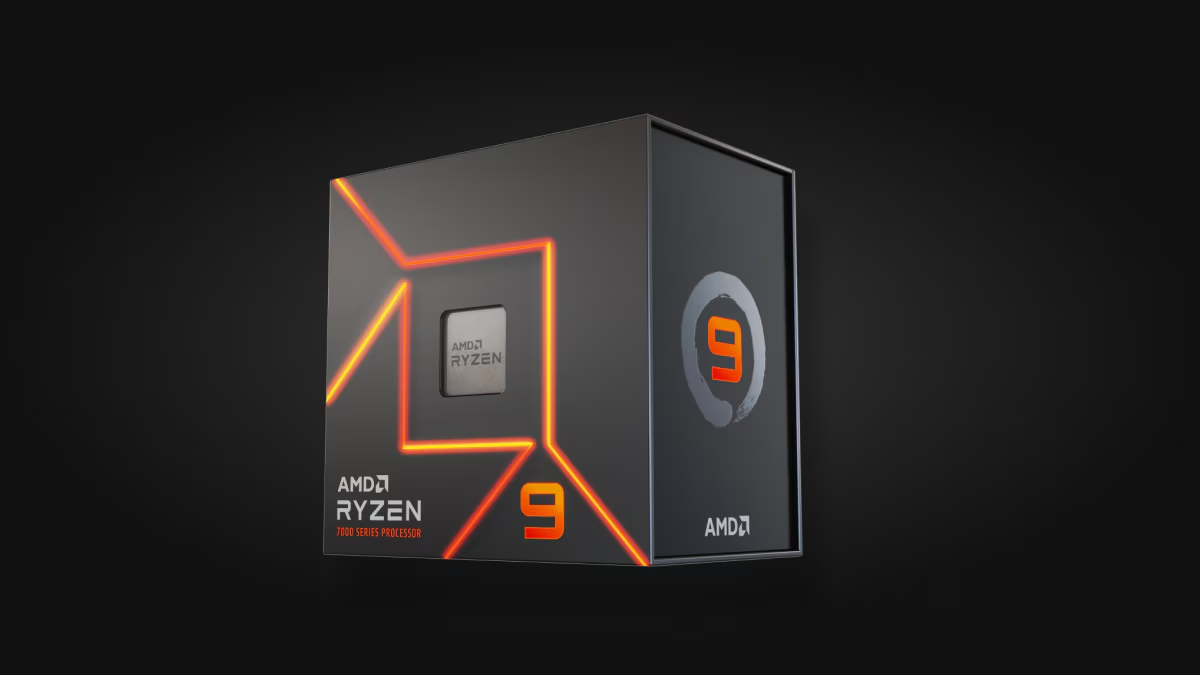
Since core count generally takes priority over clock speed (though both contribute), adding them gives you a bigger performance jump per dollar than chasing higher GHz. An AMD Ryzen 9 7950X (16 cores) or Intel Core i9-14900K (24 cores) hits a solid balance between price and render speed for most professional workflows.
Studios running animation queues or overnight batch jobs often step up to AMD Threadripper chips with 32–64 cores, where the time savings on heavy render passes justify the price premium.
KeyShot doesn't require a GPU for rendering. It can handle everything on your CPU alone.
However, since KeyShot 9, GPU rendering has been available, and it can be dramatically faster when your scenes fit into the GPU's memory.
What you need for GPU rendering in KeyShot is an NVIDIA card with CUDA support. AMD recently gained support as well (RDNA 3 and newer), but NVIDIA still delivers the best performance by a wide margin. That said, Intel GPUs are not supported for rendering at all.
If you plan to use GPU mode, here's what to look for when evaluating your KeyShot hardware requirements:
One important limitation to keep in mind: if your scene's data exceeds the GPU's available VRAM, the render will fail. You'll need to fall back to CPU mode which uses system RAM, in those cases. That's why many users keep both rendering options available in their workflow.
If you're still putting together your workstation, you should check out our guide on the best GPUs for rendering.
Your RAM determines how complex your scenes can get before KeyShot starts struggling or outright crashes. The official KeyShot recommendations list just 4 GB as the minimum, but that's barely enough to open the software with a basic model loaded.
For professional work, 32 GB is the practical starting point. It gives you room to load detailed CAD files, apply complex materials, and still multitask with other apps. If you regularly work with large assemblies or render animations, 64 GB provides a more comfortable buffer.
Storage is an underrated part of the overall KeyShot hardware requirements, mainly because it doesn't directly affect render speed. Then again, loading models and accessing texture libraries both depend heavily on drive speed.
If your studio has multiple machines, KeyShot supports network rendering through KeyShot Network Rendering. It pools CPU cores across workstations on the same network, so a job that takes 30 minutes on one 16-core machine can finish in roughly 15 minutes across two.
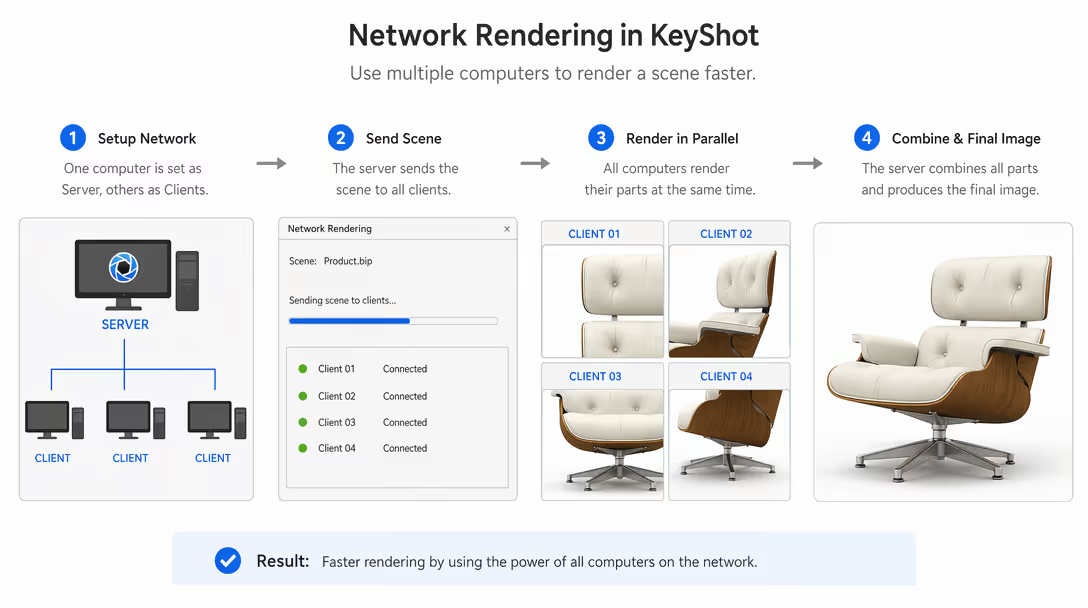
Setup runs through a manager/worker model, and any machine with KeyShot Network Monitor installed can contribute cores. This is worth considering before investing in a single high-end Threadripper workstation. Two mid-range machines on a network can match or beat it for less money.
Pricing starts at $384/year for the 16-core annual tier. That is, on top of your base KeyShot subscription cost.
Alternatively, you can use a third-party KeyShot AI rendering toolkit to simplyfy and speed up your workflow.
KeyShot has supported macOS with native Apple Silicon compatibility since version 11.2 (in beta; the full support arrived with V 11.3). If you're on a Mac with an M1, M2, M3, or M4 chip, the app runs natively and takes advantage of the unified memory architecture.
Here's what you need to meet the current KeyShot Mac requirements:
The biggest limitation affecting KeyShot system requirements on Mac is that GPU rendering is not available. KeyShot's GPU mode relies on NVIDIA CUDA, which macOS doesn't support. All your rendering happens on the CPU.
Apple Silicon chips handle CPU tasks well. M3 Pro and M4 Pro users report solid performance on moderately complex scenes. But they won't match a high-core-count Windows workstation for sheer speed on heavy jobs.
If rendering speed is your top priority, a Windows PC with a powerful CPU and NVIDIA GPU will consistently outperform a Mac at a comparable price. For designers who prefer the Apple ecosystem and work with moderately detailed scenes, it's still a capable setup.
The official minimums set a floor. Here's what actually works well for daily professional use, based on real-world KeyShot recommended system requirements from working professionals:
You'll notice that even the "light use" tier here exceeds the official KeyShot system requirements by a wide margin. That's because the minimums don't account for multitasking with CAD software or rendering at production resolutions with detailed textures applied.
Meeting the KeyShot system requirements means going way beyond the minimums on the spec sheet. The gap between "launches" and "runs well" is significant once you factor in real project complexity or multitasking.
A fast multi-core CPU, at least 32 GB of RAM, and an NVMe SSD form the practical foundation. Add also an NVIDIA RTX GPU if you want to take advantage of GPU rendering for faster turnaround.
For Windows users with the right hardware, KeyShot delivers some of the fastest and most polished product renders you can get. If you're on a Mac, KeyShot runs natively on Apple Silicon; just know that GPU rendering won't be an option.
Both, but they're independent workflows you can switch between. CPU rendering has been KeyShot's backbone since day one. It uses all your processor cores and system RAM, making it reliable for scenes of any size. GPU rendering was added in KeyShot 9 and can be significantly faster, but it requires an NVIDIA GPU (or AMD RDNA 3+) and is limited by your card's VRAM capacity.
On Mac, only CPU rendering is available since macOS doesn't support NVIDIA CUDA. Many professionals switch between the two modes depending on scene complexity and deadline pressure.
The official minimum is 4 GB, but that's only enough for the simplest models. When planning your hardware around KeyShot system requirements, 32 GB is the realistic floor. If you handle large assemblies or long animation sequences, 64 GB gives you a much more comfortable margin.
CPU rendering is the bigger RAM consumer since it processes all scene data in system memory. GPU rendering is less demanding on system RAM but depends heavily on your GPU's onboard VRAM.
Look for a laptop with at least a 12-core CPU (Intel i7-14700HX or AMD Ryzen 9 7945HX), 32 GB of RAM, and an NVIDIA RTX 4070 Laptop GPU or higher. The ThinkPad P16 and Dell Precision 7780 are popular among product designers. On Mac, the MacBook Pro 16" with an M4 Pro or M4 Max chip handles CPU rendering well, but remember that GPU rendering is not available on macOS.
Yes, on Windows with NVIDIA GPUs. KeyShot can use multiple CUDA-capable cards in the same machine, and render times scale roughly linearly with each additional GPU. AMD multi-GPU is not currently supported. On Mac, GPU rendering is unavailable entirely.