
Twinmotion is a real-time renderer, which means it's heavily GPU-dependent.
Unlike offline CPU or hybrid renderers like V-Ray, Corona, or OctaneRender, performance is primarily tied to your graphics card and its VRAM capacity, with RAM, storage type, and CPU playing supporting roles.
In this guide, we'll break down each required component in detail, covering both minimum and high-end specs. We'll also cover how to avoid bottlenecks, optimize your scenes for better performance, and explore a cloud-based Twinmotion alternative if upgrading your workstation isn't an option.
First, here's an overview of Twinmotion's system requirements according to Epic Games' official documentation.
The minimum Twinmotion requirements allow you to use basic features such as:
High-end Twinmotion requirements let you:
If you're using Twinmotion for professional architectural rendering, minimum specs won't get you there. You'll want to aim for the high-end requirements to get smooth viewport performance and quality output at higher resolutions.
Important note: Twinmotion can run on macOS versions earlier than 13.5, but it is not officially supported. In addition, the software is greatly limited on macOS. Path tracer and VR Mode features are not supported, and Lumen on Mac only supports software ray tracing mode.
.avif)
Twinmotion is highly GPU-intensive and needs at least 6GB of VRAM and a benchmark score of 10,000 or higher.
An NVIDIA GeForce GTX 1060 6GB GDDR5, 192-bit variant, or a GPU of similar capacity is enough to comply with Twinmotion’s minimum hardware requirements. This card provides 6GB of VRAM and a benchmark score of 10,056, which technically (but barely) satisfies Twinmotion’s baseline GPU specifications.
With the minimum required GPU, expect decent performance for the following tasks:
However, it is not suitable for:
These limitations apply to GPUs with benchmark scores below 20,000.
If you want to fully utilize Twinmotion’s advanced features, consider a GPU with a benchmark score of 20,000 or more.
A good example is the Radeon RX 9060 XT 16GB. With a benchmark score of 20,071 and 16GB of VRAM, this GPU is able to support VR workflows, high-resolution exports, and advanced rendering modes like Path Tracer and Lumen.
VRAM is where your GPU stores the data it needs quick access to during rendering, things like textures, geometry, and lighting information. For large scenes with high-resolution textures and complex lighting, you need enough VRAM to hold all of that. If your scene exceeds the available VRAM, performance will drop significantly, and in some cases, rendering may fail entirely.
Keep in mind that GPUs of the same model can come in different VRAM variants. For example, the Radeon RX 9060 XT is available in both 8GB and 16GB configurations, so pay close attention to this spec when purchasing.
Choosing a GPU with more VRAM is one of the safest long-term investments you can make.
Twinmotion is generally more demanding on the GPU than the CPU, as it relies heavily on real-time rendering.
The CPU handles data processing, scene management, and calculations, while the GPU manages the rendering workload.
Because of this, Twinmotion is relatively lenient when it comes to processor requirements
If you plan to use an ultra high-end GPU such as the GeForce RTX 5090 D, pairing it with a lower-tier processor would create a performance bottleneck.
In this case, a processor like the Intel Core i5-14600K, with a benchmark score of 4,270, would be a far more appropriate match.
This means, even with a low minimum requirement, you may have to purchase a more capable CPU if you’re going for a high-end GPU for a balanced setup.
If you’re unsure with CPU and GPU pairing options, ask your local provider or use an online bottleneck calculator.
If VRAM (GPU memory) stores the data your graphics card needs immediate access to, system RAM stores the data your CPU needs to keep everything running smoothly. When using Twinmotion, RAM handles a wide range of background processes, including scene geometry, textures before they’re transferred to the GPU, assets, vegetation systems and lighting data, among others.
Your RAM is also responsible for data used by background apps when multitasking, system services, file indexing, and temporary cache, and more.
Another critical role of system RAM is acting as overflow memory when your GPU’s VRAM limit is exceeded. When this happens, the system temporarily uses RAM to compensate. However, RAM is significantly slower than VRAM. As a result, exceeding your GPU’s memory capacity often leads to lag, stuttering, slower exports, and reduced responsiveness.
Disk space is not only used to store your OS, applications, and files. Your disk is also responsible for how fast you’re able to load assets and saving and loading files. Since Twinmotion is a real-time rendering software, you’ll need real-time quality. In this case, a Solid State Drive, particularly an NVMe SSD, is recommended, although not specifically stated in Twinmotion’s documentation.
Twinmotion is best used on Windows 10 or 11 (64-bit) if you want maximum performance and full-featured support.
While Twinmotion is compatible with macOS, it comes with significant limitations, including no support for Path Tracing, driver restrictions that prevent VR usage, and limited support for Lumen (the global illumination system).
Twinmotion is not officially supported on Linux systems. While it is possible to install Twinmotion on Linux systems using compatibility layers like Wine or Bottles and virtual machines, you will not have access to technical support, there may be performance issues since Twinmotion relies heavily on DirectX 12 (Windows), and you may encounter feature limitations.
Before upgrading your hardware, it's worth optimizing your scenes first. Poor optimization leads to viewport lag, slow renders, long export times, and in extreme cases, crashes or freezing. A few adjustments can make a significant difference.
Before modifying your scene, review Twinmotion’s internal settings. Small adjustments here can have a major impact on performance:
When you duplicate an asset by copying and pasting it, Twinmotion duplicates the memory usage as well.
Instead, create instances of the same object. Instances reuse the original asset’s properties and geometry, significantly reducing memory consumption. This is especially useful when working with vegetation, furniture, or repeated architectural elements.
Before rendering, hide objects that are not visible in the camera view. If they do not appear in the final shot, they do not need to consume system resources during rendering. This reduces the overall workload on both RAM and GPU, improving render speed and stability.
As you work, Twinmotion stores all used materials in the Materials Dock, even those that have been replaced. Removing unused materials from the dock reduces file size, frees up memory and improves loading times..
If ray tracing is enabled when saving your file, Twinmotion will automatically load it with ray tracing turned on next time you open it. Since ray tracing increases load times and GPU demand, turning it off before saving can significantly improve project startup speed.
Scene optimization can only go so far.
If performance issues persist despite optimization, upgrading your GPU, adding more RAM, or moving to faster storage may be the most effective long-term solution.
Upgrading your hardware is not always possible, especially if you need a solution immediately or because of budget constraints. If you want to avoid relying on your local workstation altogether, cloud-based rendering tools such as MyArchitectAI offer an alternative approach.
Instead of using your own CPU or GPU, MyArchitectAI runs in your web browser, not overloading your machine. The process is straightforward: you upload a raw image of your scene, the platform processes it in the cloud, and within seconds you receive a finished render that you can download.
Because MyArchitectAI is AI-powered, it automatically handles render setup without requiring manual configuration. Lighting, shadows, textures, and overall visual enhancement are generated by the system, and you can further refine the output using simple text prompts.
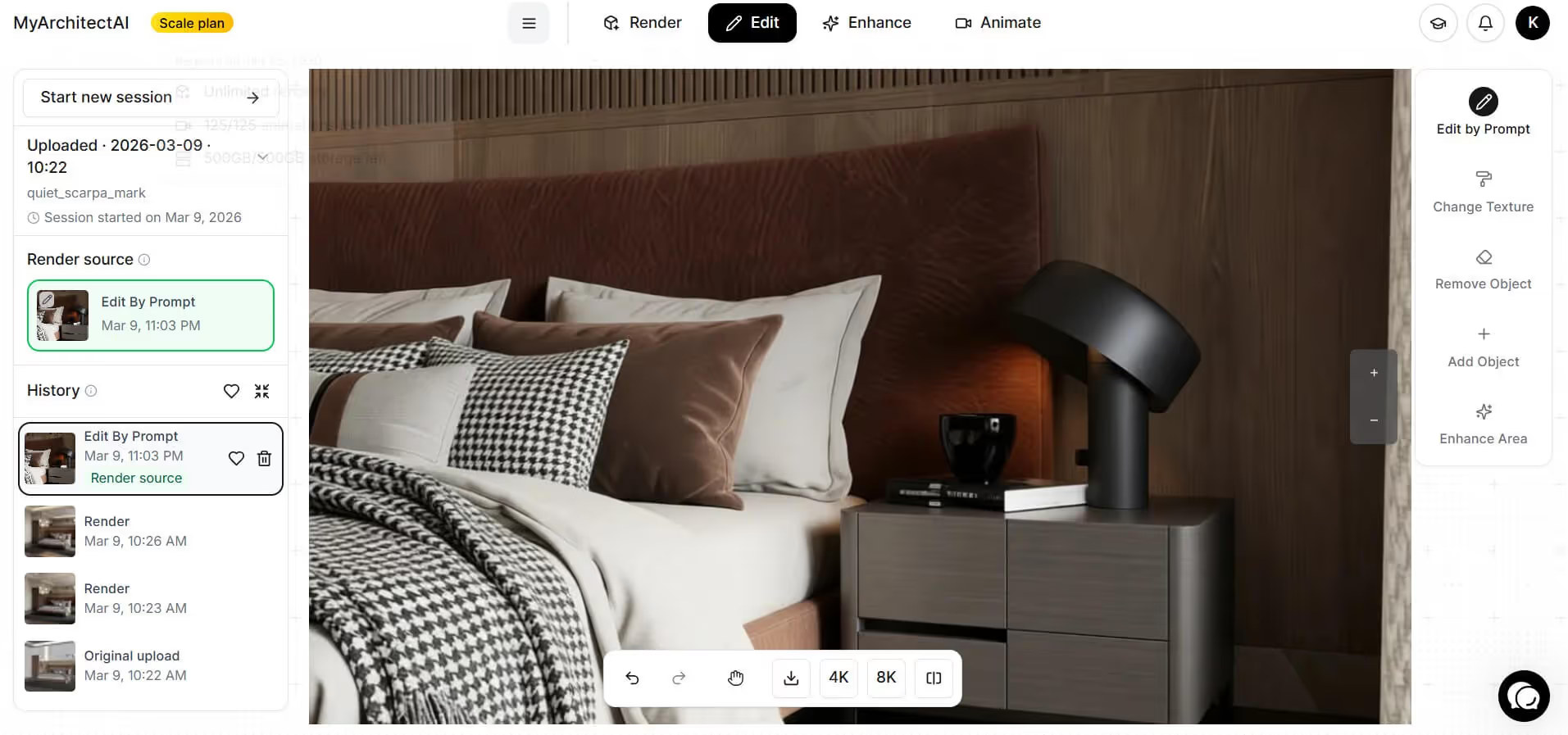
Compared to physically-based renderers like Twinmotion that highly rely on your hardware, MyArchitectAI can generate a final image in under 30 seconds, significantly reducing both production time and hardware dependency.
For users who prioritize speed, simplicity, and accessibility over deep manual control, MyArchitectAI is an excellent alternative to Twinmotion.
Twinmotion's system requirements are relatively straightforward. If you're working on small to mid-sized scenes with basic features, minimum specs should be enough. For professionals handling larger projects who prioritize efficiency, stability, and high-quality output, investing in high-end hardware is the more practical choice.
That said, not everyone is in a position to upgrade their workstation, and that's exactly the problem MyArchitectAI solves. It's a cloud-based rendering platform that produces photorealistic results without any hardware requirements or installs, so your local setup stops being a bottleneck.
The best GPU for Twinmotion is the NVIDIA GeForce RTX 5090 D. It’s the newest and one of the most robust consumer market GPUs today. For light rendering tasks, a GPU with a benchmark score of around 10,000 is sufficient. For high-end rendering, you should aim for a GPU with a benchmark score of at least 20,000.
Yes. Twinmotion is a GPU-intensive software since it’s a real-time rendering tool. It will not function without a GPU.
It uses both GPU and CPU. It is GPU-intensive, but needs a CPU for background activities like file transfers, system activities, etc.
Optimize your scenes by removing duplicate assets, using instances instead of copies of assets, using the right render settings, and having Twinmotion recommended specs.

.webp)