Below is the full list of AutoCAD keyboard shortcuts, grouped by workflow.
AutoCAD's command aliases are short, usually one or two letters typed at the command line. L draws a line, M moves, CO copies, MI mirrors. Press Enter or Space to commit, and the tool fires.
Combined with the F1–F12 toggles and the Ctrl combos, fluent users type instead of clicking through the ribbon. Expect your drafting speed to double.
Need to change keyboard shortcuts or add your own? See recommended custom shortcuts and how to customize further down. Pairing this with an AutoCAD AI renderer compounds the productivity gain.
If you only memorize ten AutoCAD hotkeys, make it these ten. They cover most of a typical drafting session.
This is the full AutoCAD hotkey list, broken down by what you're actually doing. Most are command aliases, short letter combinations you type at the command line. A handful are Ctrl combos for file and window operations. The function keys (F1–F12) toggle drawing aids. Recommended custom shortcuts further down covers the lesser-known defaults worth memorizing.
| Action | Shortcut |
|---|---|
| Zoom Real-time Type Z + Enter then drag mouse | Z |
| Zoom Extents Frame entire drawing | Z + E |
| Zoom Window Drag a window to zoom into | Z + W |
| Zoom Previous Return to prior zoom level | Z + P |
| Zoom All Frame all drawing limits | Z + A |
| Zoom Object Frame a selected object | Z + O |
| Pan Real-time Drag the view without zooming | P |
| Regenerate Rebuilds the entire drawing | RE |
| View Manager Save and recall named views | V |
| 3D Orbit Orbit the model in 3D | 3DO |
| Action | Shortcut |
|---|---|
| Selection Cycling Toggle selection cycling | Ctrl + W |
| Select All Selects every visible object | Ctrl + A |
| Quick Select Select by property | QSELECT |
| Select Similar Select objects matching the picked one | SELECTSIMILAR |
| Add to selection While in selection mode | Shift + click |
| Remove from selection Click selected object to deselect | Shift + click again |
| Filter selection Opens the object selection filter | FILTER |
| Action | Shortcut |
|---|---|
| One click rendering Render any AutoCAD model in 10 seconds — no extra software needed. | MyArchitectAI → |
| Action | Shortcut |
|---|---|
| Line Basic line tool | L |
| Polyline Connected line with width options | PL |
| Circle Pick center then radius | C |
| Rectangle Click two opposite corners | REC |
| Polygon Regular n-sided polygon | POL |
| Arc Pick start | A |
| Ellipse Center then two axis points | EL |
| Hatch Fill bounded area with pattern | H |
| Spline Smooth curve through control points | SPL |
| Donut Filled or thick-walled circle | DO |
| Point Place a point object | PO |
| Construction Line (xline) Infinite line for layout | XL |
| Ray Half-infinite line | RAY |
| Action | Shortcut |
|---|---|
| Erase Delete selected objects | E |
| Move Move selection to new position | M |
| Copy Or CP — duplicate selection | CO |
| Rotate Pick base point then angle | RO |
| Mirror Reflect across an axis | MI |
| Offset Parallel copy at distance | O |
| Trim Trim to a boundary | TR |
| Extend Extend to a boundary | EX |
| Fillet Round a corner with radius | F |
| Chamfer Bevel a corner with distance | CHA |
| Stretch Stretch geometry by selection box | S |
| Scale Scale selection by factor or reference | SC |
| Array Linear / polar / path duplication | AR |
| Explode Break complex objects into primitives | X |
| Join Merge connected objects | J |
| Break Split an object at two points | BR |
| Lengthen Change line/arc length | LEN |
| Match Properties Copy properties from source to targets | MA |
| Group Wrap selection in a group | G |
| Align Align objects via two source/target pairs | AL |
| Action | Shortcut |
|---|---|
| Linear Dimension Aligned horizontal/vertical dimension | DLI |
| Aligned Dimension Parallel to the picked points | DAL |
| Radius Dimension Dimension a circle's radius | DRA |
| Diameter Dimension Dimension a circle's diameter | DDI |
| Angular Dimension Angle between two lines | DAN |
| Continue Dimension Chain dimensions from the previous | DCO |
| Baseline Dimension Stack dimensions from a baseline | DBA |
| Multileader Leader with text/block at the end | MLD |
| Text (multiline) Multi-line text editor | MT |
| Text (single line) Single-line text | DT |
| Edit Text Edit existing text in place | ED |
| Dimension Style Open the Dim Style Manager | D |
| Action | Shortcut |
|---|---|
| Layer Properties Open the Layer Properties Manager | LA |
| Layer Off Click an object to turn off its layer | LAYOFF |
| Layer On Turn all layers on | LAYON |
| Layer Isolate Hide all but the selected layer | LAYISO |
| Layer Unisolate Restore visibility after LAYISO | LAYUNISO |
| Layer Match Move objects to a matched layer | LAYMCH |
| Layer Freeze Freeze the picked object's layer | LAYFRZ |
| Layer Thaw All Thaw every frozen layer | LAYTHW |
| Action | Shortcut |
|---|---|
| Block (create) Make a block from selection | B |
| Insert Block Insert an existing block | I |
| Edit Block in Place Edit a block reference inline | REFEDIT |
| Block Editor Open the block in its own editor | BE |
| External Reference Manage xrefs | XR |
| Attach External Reference Attach an xref to the drawing | XATTACH |
| Bind Reference Bind named items from an xref | XBIND |
| Write Block Export a block as its own DWG | WBLOCK |
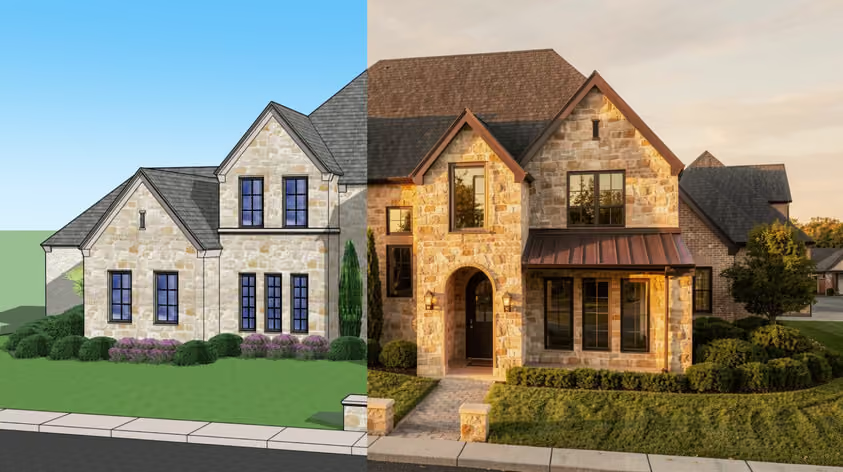
Once these shortcuts are second nature, the render becomes the next bottleneck. MyArchitectAI turns any AutoCAD drawing into a photoreal render in seconds. No extra software, no GPU upgrade.
| Action | Shortcut |
|---|---|
| Help Open Help | F1 |
| Toggle Text Window Show/hide command history pane | F2 |
| Object Snap Toggle running object snaps | F3 |
| 3D Object Snap Toggle 3D object snaps | F4 |
| Isoplane Cycle Cycle between isometric planes | F5 |
| Dynamic UCS Toggle dynamic UCS | F6 |
| Grid Display Toggle the grid | F7 |
| Ortho Mode Constrain cursor to orthogonal directions | F8 |
| Snap Mode Snap cursor to grid increments | F9 |
| Polar Tracking Toggle polar tracking | F10 |
| Object Snap Tracking Toggle osnap tracking | F11 |
| Dynamic Input Toggle dynamic input prompts | F12 |
| Action | Shortcut |
|---|---|
| Properties Palette Open or close Properties | Ctrl + 1 |
| DesignCenter Open the DesignCenter palette | Ctrl + 2 |
| Tool Palettes Open the Tool Palettes | Ctrl + 3 |
| Sheet Set Manager Open the Sheet Set Manager | Ctrl + 4 |
| Quick Calculator Open the Quick Calc palette | Ctrl + 8 |
| Clean Screen Maximize the drawing area | Ctrl + 0 |
| Toggle Tab Bar Show/hide the command line | Ctrl + 9 |
| Action | Shortcut |
|---|---|
| New New drawing | Ctrl + N |
| Open Open file | Ctrl + O |
| Save Save current file | Ctrl + S |
| Save As Save with new name | Ctrl + Shift + S |
| Plot/Print Open the Plot dialog | Ctrl + P |
| Undo Step back through changes | Ctrl + Z |
| Redo Re-apply undone change | Ctrl + Y |
| Cut Cut selection | Ctrl + X |
| Copy Copy selection to clipboard | Ctrl + C |
| Paste Paste at cursor | Ctrl + V |
| Paste as Block Paste clipboard as a block | Ctrl + Shift + V |
| Cancel current command Exit any active command | Esc |
These aren't custom assignments. They're defaults that pros use every day but beginners rarely discover. Each one replaces a multi-step menu dive with a single command. See how to customize below if you want to reassign or add your own.
| Command | Action | Why it's worth knowing |
|---|---|---|
| LAYISO | Layer Isolate | Click any object and AutoCAD hides every other layer. Indispensable in busy drawings. |
| LAYMCH | Layer Match | Click objects to move, then click a target object. They all jump to that layer. |
| QSELECT | Quick Select | Build a selection set by property: every red dashed line, every block of a certain name, etc. |
| MA | Match Properties | Copy properties (layer, color, linetype) from one object to many. Faster than editing each individually. |
| BURST | Burst (Express Tools) | Explode a block but keep the attributes as text. Express Tools must be installed. |
| PU | Purge | Removes unreferenced blocks, layers, and styles. Shrinks file size and cleans clutter. |
| DI | Distance | Measures distance between two picked points without leaving a dimension. |
| AREA | Area | Calculates area of a polygon by picking points or selecting an object. |
Whether you want to add shortcuts in AutoCAD or change keyboard shortcuts you already have, there are two separate systems. Command aliases are the short letter combos you type at the command line (L, M, CO). Keyboard shortcuts are the Ctrl, Shift, Alt, and function-key combos that fire commands directly. Each lives in its own place, and you customize them differently.
acad.pgp directly: Manage tab → Customization panel → Edit Aliases → Edit Aliases (PGP).Aliases work at the command line. Type, then press Enter or Space to fire. Shortcuts work anywhere: Ctrl, Shift, Alt, and the F-keys execute on press. The two systems don't overlap.